How to Send Secure Email in Outlook Made Simple
Learn how to send secure email in Outlook with encryption, S/MIME and compliance tips for Canadian businesses. Step-by-step guide inside.

Learn how to send secure email in Outlook with encryption, S/MIME and compliance tips for Canadian businesses. Step-by-step guide inside.
A clinician is about to send a referral containing personal health information. A lawyer is attaching a draft agreement to an external client. An operations manager is forwarding payroll details to an accountant. In each case, Outlook makes sending the message easy, but the default compose window doesn't tell you whether the content has the protection your organization requires.
The practical answer to how to send secure email in Outlook depends on the recipient, the sensitivity of the information, and how your Microsoft 365 environment is governed. Outlook offers two core protection models, Microsoft Purview Message Encryption and S/MIME, and each solves a different operational problem.
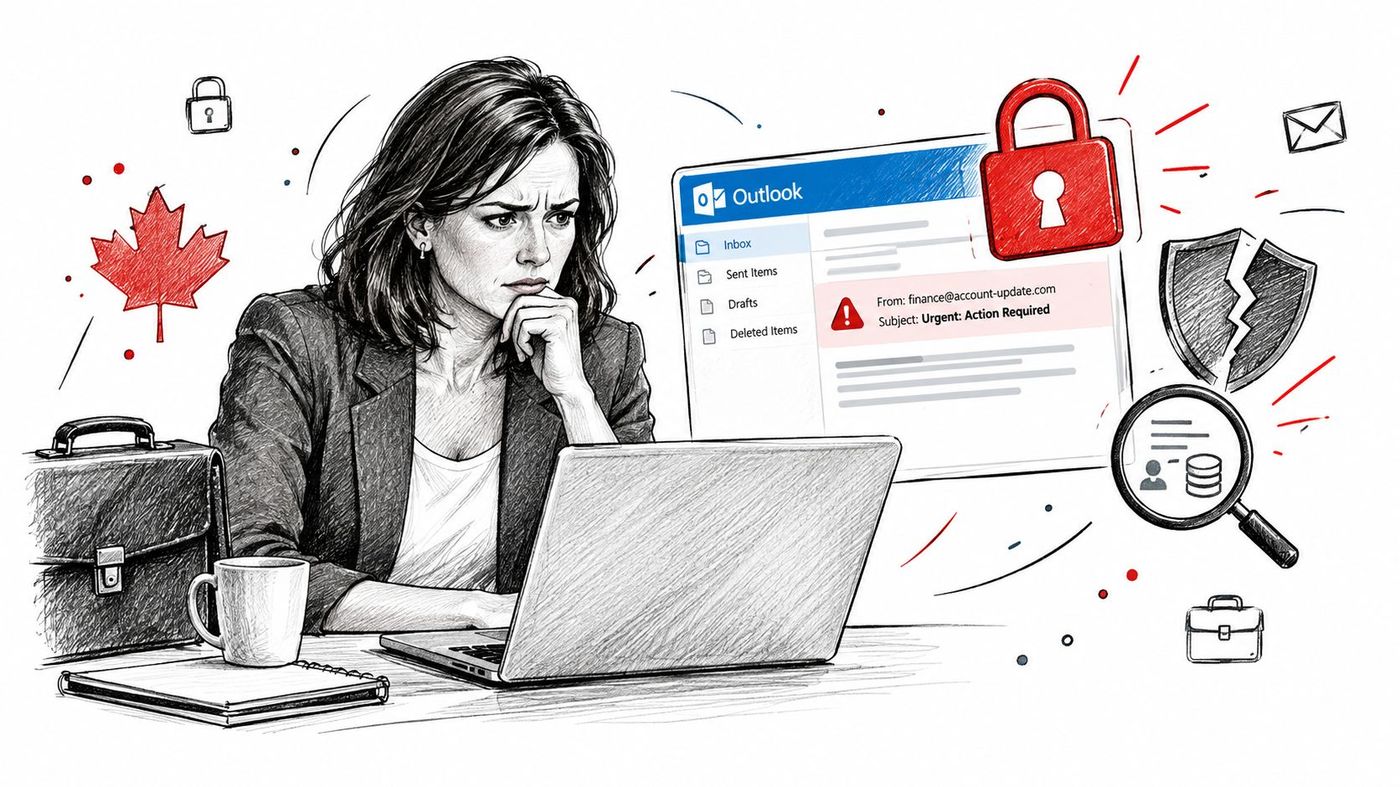
A secure email workflow protects more than the message itself. It helps reduce accidental disclosure, limits what a recipient can do with sensitive content, and gives administrators a way to apply consistent rules instead of relying entirely on employee memory.
That distinction matters in Canadian healthcare, legal, finance, accounting, and other regulated environments. A clinic may need to send a patient document to an external specialist. A law firm may exchange privileged material with opposing counsel. An accounting firm may share confidential records with a client. In each situation, a mistaken recipient, an unprotected attachment, or an incompatible email client can create a business and compliance problem.
Canadian privacy requirements vary by organization, province, sector, and type of information. Leaders reviewing their broader obligations can use this overview of Canadian data privacy laws as a starting point, then confirm the applicable requirements with qualified legal or privacy counsel.
Microsoft's Outlook guidance describes two central models. Microsoft Purview Message Encryption lets a user protect a message from the Options ribbon by choosing Encrypt or Do Not Forward. Administrators can also apply protection through Microsoft 365 policies and sensitivity labels.
S/MIME, or Secure/Multipurpose Internet Mail Extensions, uses digital certificates to provide certificate-based signing and encryption. It can be configured to encrypt outgoing messages automatically when the certificate is installed and enabled in Outlook settings. The recipient also needs a compatible mail application and the appropriate certificate material to decrypt the message.
Microsoft indicates that message encryption can cover emails and, in some plans, attachments. Its Exchange guidance also states that encrypted and rights-protected messages can be sent to recipients inside or outside the organization, including people using services such as Gmail.com and Outlook.com. That makes Purview Message Encryption useful for external business and client communication where certificate deployment would create friction.
Practical rule: Choose the protection model before the message is drafted. The right option depends on recipient compatibility and organizational policy, not just the sensitivity of the subject line.
A reliable rollout also includes user awareness. Teams working with confidential information should review practical best practices for email security, including recipient verification, attachment handling, and phishing awareness. Encryption can't correct an incorrect recipient or a compromised account, so it belongs inside a broader security programme.
Most Outlook teams need to choose between Microsoft Purview Message Encryption and S/MIME. Both protect email, but they differ in how identity, access, administration, and recipient compatibility are handled.
Purview Message Encryption is usually the easier choice for occasional secure messages and external recipients. The sender selects a protection option while composing the email, and the recipient follows the access process available for that message. No certificate exchange is required from the sender in the normal user workflow.
S/MIME is the stronger fit for certificate-based identity, digital signatures, and recurring encrypted correspondence between prepared users. It requires certificate provisioning and careful lifecycle management. If the recipient doesn't have a compatible application and matching certificate, the protected message may be unreadable.
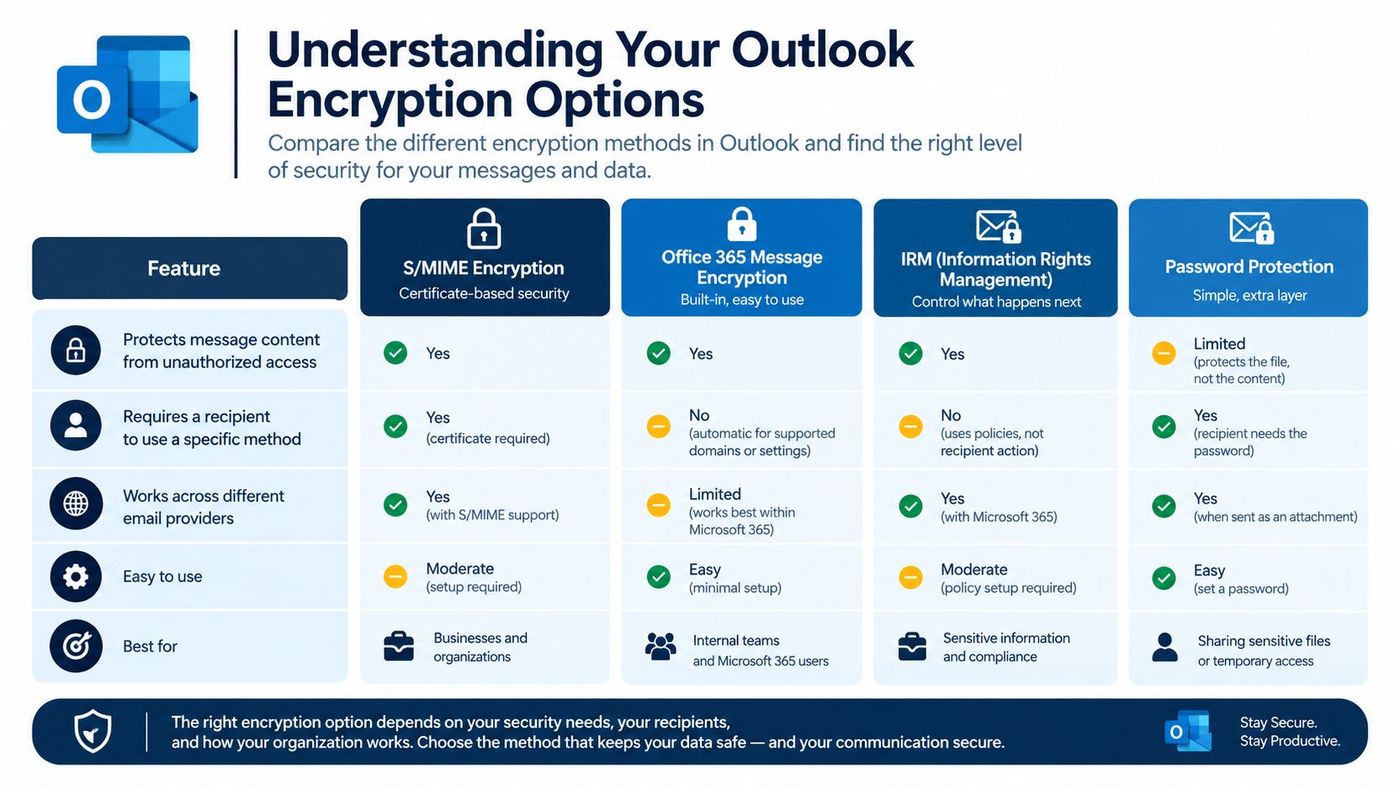
| Feature | Office 365 Message Encryption | S/MIME |
|---|---|---|
| Primary model | Microsoft Purview policy and message protection | Certificate-based encryption and digital signatures |
| Best fit | Ad-hoc messages, external recipients, and rights control | Established secure correspondence between configured users |
| User experience | Select Encrypt or Do Not Forward from the compose window | Use a provisioned certificate and enabled S/MIME settings |
| Recipient requirement | Can support recipients inside or outside the organization, including non-Office 365 services | Recipient must use an S/MIME-compatible mail application and have suitable certificate access |
| Administrative control | Microsoft 365 policies and sensitivity labels can enforce protection | Administrators manage certificates, assignment, and profile settings |
| Main trade-off | Less dependent on recipient certificate setup, but policy design still matters | Strong identity and signing capabilities, but deployment and certificate governance are more demanding |
Purview is generally more practical when users communicate with patients, customers, suppliers, or partners who use varied mail platforms. It also supports rights-oriented choices such as Do Not Forward, which can be useful when limiting redistribution matters.
S/MIME makes more sense when both sides are known, the relationship is recurring, and the organization can manage certificates consistently. It can provide a more controlled end-to-end workflow, but only if both ends are configured correctly.
For healthcare teams, encryption should sit alongside permissions, auditability, and controlled sharing. These access control tips for medical data sharing provide useful context for designing the surrounding workflow. Organizations also need to confirm that their Microsoft licensing supports the policies and controls they plan to use. CloudOrbis maintains a guide to Microsoft enterprise licensing for teams evaluating that foundation.
For a one-off message, the quickest method in Outlook for Microsoft 365 is to apply encryption from the compose window. This is the approach I recommend when a user needs protection immediately and the recipient may be outside the organization.
Microsoft documents this compose-window path for Outlook for Microsoft 365. The feature is designed for messages to recipients both inside and outside the organization, including people using non-Office 365 services. That makes it more flexible than S/MIME for external correspondence where certificates haven't been exchanged.
Encryption isn't a substitute for careful addressing. A protected message sent to the wrong external contact is still a disclosure, and a sensitive attachment may need separate handling under your organization's policy. Check the address character by character, particularly when Outlook suggests contacts automatically.
The exact recipient experience can vary by service and account. Some recipients may read the message in their usual mail environment, while others may need to authenticate through a secure access experience. Tell external recipients what to expect, especially if they're unfamiliar with protected Microsoft 365 messages.
This method works well for individual decisions, but it can become inconsistent if every employee must remember when to select it. Teams that need a repeatable process should pair the user workflow with sensitivity labels, mail flow controls, and training. The email security best practices guide provides supporting guidance for building that routine.
S/MIME is the certificate-based option for organizations that need digital signatures and end-to-end email protection between configured users. It isn't another Outlook button. The deployment includes certificates, user settings, device readiness, recipient compatibility, and administrator policy.
Before enabling S/MIME, the user must import a digital certificate or receive one provisioned by an administrator. Certificate import and export are managed from the S/MIME settings area, and the certificate must be available to the Outlook profile and device being used.
In Outlook, go to Settings > Mail > S/MIME. Enable the relevant certificate options, then consider selecting:
Automatic encryption reduces reliance on individual memory, while signing helps recipients validate the sender and confirm that the message has not been altered. It also raises the importance of certificate governance, because a user can't sign or decrypt reliably if the certificate is missing, expired, unavailable, or assigned incorrectly.
Microsoft notes that the recipient must use a mail application that supports S/MIME. Both sender and recipient need the configuration required for the exchange. A user can successfully click Send while the recipient still lacks the matching certificate or a compatible client.
Recipient check: Test S/MIME with an external recipient before enabling it for a high-risk workflow. A sent message isn't proof that the other party can decrypt it.
For a dedicated encrypted-email profile in classic Outlook, open:
File > Options > Trust Center > Trust Center Settings > Email Security
Choose the appropriate Signing Certificate and Encryption Certificate. Use SHA256 as the hash algorithm and AES 256-bit as the encryption algorithm, then enable Send these certificates with signed messages. Send a signed test message to an external recipient before relying on the profile for regulated communication.
Outlook decrypts S/MIME email only when a usable certificate is present on the device. Smart-card certificates can also trigger a PIN prompt when the user opens protected mail, so support teams should prepare users for that behaviour rather than treating it as an unexplained error.
If Automatically choose the best certificate for digital signing is grayed out, Microsoft indicates that an administrator has disabled the option. The fix may require a policy adjustment or certificate assignment, not repeated user attempts.
Device management matters as much as mailbox configuration. Teams using mobile devices or managed endpoints should align S/MIME certificate deployment with their Intune device management approach, particularly where users access Outlook from more than one device.
A secure Outlook workflow needs a governance layer. Users can select encryption for individual messages, but administrators can make protection more dependable by combining sensitivity labels, Microsoft 365 policies, data loss prevention controls, and transport encryption.
Sensitivity labels can classify information and apply protection based on the organization's rules. For example, a label for confidential client information may require encryption or limit how recipients handle the message. The precise label design depends on the organization's data categories, business processes, and Microsoft 365 configuration.
A practical policy starts with clear handling decisions:
Attachments deserve special attention because users often focus on the email body and forget the file. Microsoft's Outlook and Purview guidance indicates that encryption can apply to email and, in some plans, attachments. Administrators should verify the behaviour in their specific Microsoft 365 plan and policy configuration rather than assuming every attachment receives identical protection.
The Government of Canada's Microsoft 365 security playbook requires email labelled Protected B to be encrypted with Entrust PKI (myKEY) or another Government of Canada-approved solution. The playbook also states that data in transit should use at least TLS 1.3, with TLS 1.2 permitted only when compatibility, audit compliance, or threat monitoring requires it. See the Government of Canada Microsoft 365 security playbook when assessing requirements that apply to your environment.
TLS protects the transport path, while message-level encryption protects the content through the approved message workflow. Neither control replaces the other. A policy-driven design should document which control applies to each classification, how exceptions are approved, and how administrators verify that the settings remain active.
For teams refining their control framework, data loss prevention guidance can help connect email protection with broader information-handling practices.
Most Outlook encryption failures are configuration failures, not mysterious Outlook behaviour. Start with the recipient, certificate, client, and device. A protected message may be correctly sent but impossible to read if the recipient lacks the matching certificate or uses a mobile client without S/MIME support.
Use this quick diagnostic sequence:
Operational lesson: Encryption works at the intersection of policy, identity, device configuration, and recipient capability. A button click is only one part of the control.
Keep a documented test case for each important workflow, such as clinic-to-specialist communication or law-firm-to-client exchange. Record the protection method, recipient type, device used, attachment behaviour, and expected result. When a user reports a failure, IT can compare the incident with the known-good process instead of troubleshooting from scratch.
For a Canadian SMB, the sensible target is a workflow employees can follow and administrators can verify. Use Purview Message Encryption for flexible, policy-driven protection where external recipients are common. Use S/MIME where certificate-based identity and recurring end-to-end exchange justify the deployment effort. Then reinforce both with labels, transport security, device management, and user training.
CloudOrbis Inc. helps Canadian small and mid-sized businesses assess Microsoft 365 security, configure Outlook encryption policies, manage certificates and devices, and support compliant email workflows. Visit CloudOrbis Inc. to discuss an environment review and a practical implementation plan for your team.
Book a 30-minute call with a senior engineer. No sales script, just straight answers about your environment.


