Intune Device Management Guide for Canadian SMBs
Practical Intune device management guide for Canadian SMBs covering MDM/MAM, enrollment, compliance, HIPAA, and how CloudOrbis supports Intune.

Practical Intune device management guide for Canadian SMBs covering MDM/MAM, enrollment, compliance, HIPAA, and how CloudOrbis supports Intune.

A Toronto accounting firm's IT lead watches three employees arrive with personal iPhones they'll use to email client files that evening. Nearby, two firm-owned laptops sit on a desk. Nobody has a reliable answer to a basic audit question: which devices can access company data, and are those devices secure?
That situation is common across Canadian SMBs. Hybrid work has created mixed fleets of Windows laptops, Macs, iPhones, Android phones, and shared workstations. Employees expect convenient access, while auditors and privacy officers expect evidence that the business controls access properly. Intune device management can bring those requirements into one operating model, but only if you design it around access control and privacy rather than enrolling every device.
This guide takes a practical Canadian view. It focuses on the deployment patterns, compliance decisions, and BYOD boundaries that matter to healthcare, legal, finance, accounting, and other regulated organizations.
Five years ago, many smaller organizations treated endpoint management as an enterprise project. Today, Microsoft 365 tenants, cloud applications, remote work, and personal devices have made endpoint control a daily operating requirement. Legacy management approaches are being retired or consolidated, while Microsoft packages more endpoint capabilities into the subscriptions businesses already evaluate.
The pressure also comes from the evidence auditors request. A policy document saying employees should use screen locks isn't enough. Leadership needs to show which devices enrolled, whether encryption is active, how access is restricted, and what happens when a device becomes unsafe.
Canadian public-sector adoption gives this shift useful context. Federal digital-government guidance lists Microsoft Intune alongside Microsoft Defender for Endpoint in the Security Playbook for Microsoft 365. That positioning treats device management as part of a broader security architecture, not as an optional mobile add-on.
The same policy environment includes a 2025 Policy Implementation Notice on standardized Microsoft tools. A federal Defence 365 onboarding guide also requires users to install Company Portal, authenticate with their Defence 365 email, and complete device enrollment before the device can be verified for access to company resources.
Practical rule: If you can't identify the device, the user, and the access decision, you don't have a dependable control.
Microsoft's Canadian pricing page lists Intune at CAD $81.40 and identifies additional capabilities for Microsoft 365 E5 customers, including Endpoint Privilege Management, Cloud PKI, and Enterprise App Management. The British Columbia public sector approved Office 365, Intune, Power BI, and parts of Azure for use as of January 30, 2018, demonstrating that Intune had already passed provincial cloud-policy scrutiny by that point.
For a smaller business, the objective isn't to recreate an enterprise operations centre. It's to establish a controlled path from enrollment to compliance, then apply access rules consistently. The benefits of managed IT services are most visible when those controls continue working after staff changes, new devices, and urgent access requests.
Think of Intune as a secure building. Entra ID is the identity foundation, enrollment records which devices belong in the building, configuration profiles establish the internal rules, compliance policies inspect whether those rules are being followed, and conditional access controls the door.
Microsoft describes Intune as a cloud-based endpoint management service for Windows, Android, macOS, iOS, and Linux. It supports inventory, operational actions, scripts, remediations, and reporting through a single management model. That cross-platform coverage suits Canadian SMBs where one employee may use a Windows laptop, an iPhone, and a personal Mac at home. See the Microsoft Intune business overview for the platform scope.
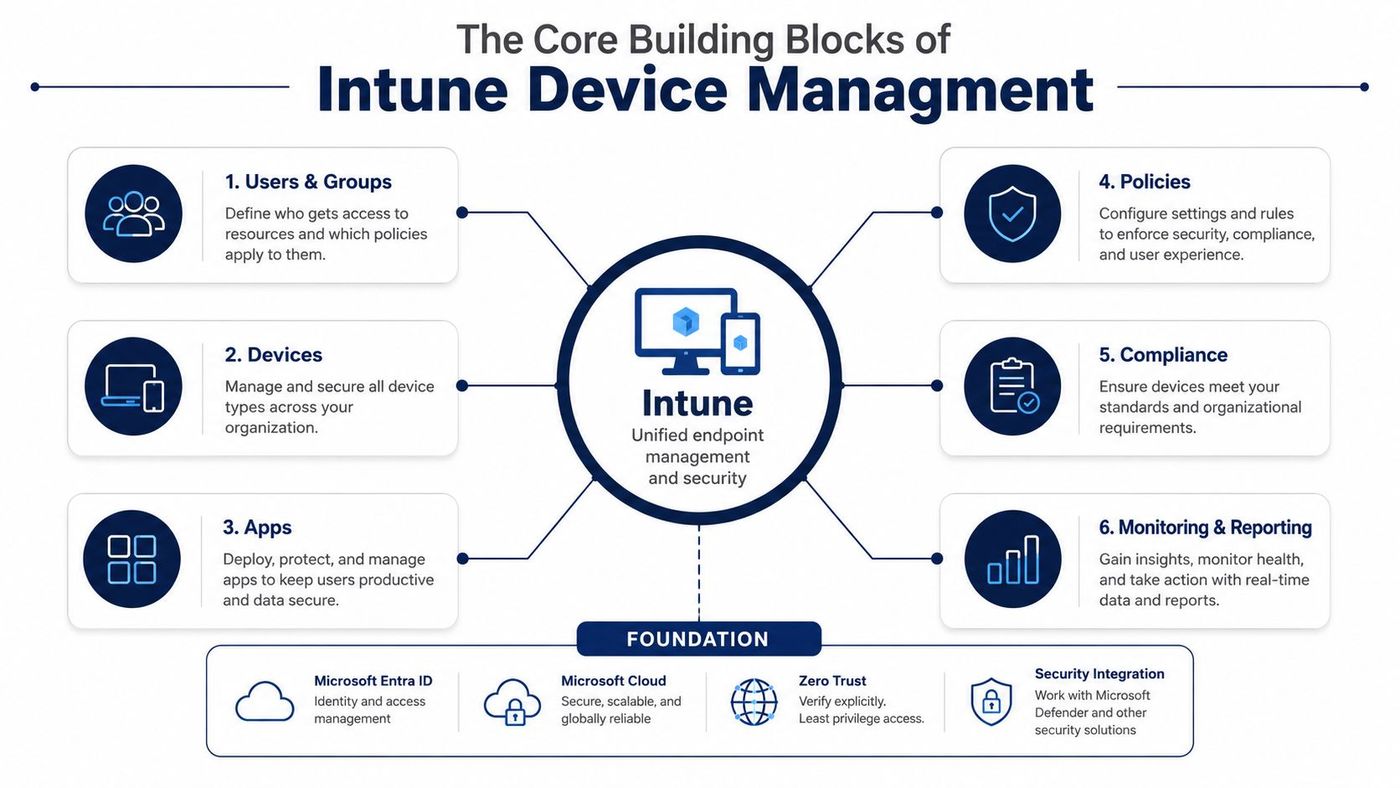
Enrollment connects a user or device to Intune and creates the management relationship. Corporate Windows devices can use automatic enrollment and Windows Autopilot. A user can enrol a personal iPhone or Android phone through Company Portal or an appropriate user-enrolment path. Apple Business Manager supports organised deployment for company-owned Apple devices.
MDM, or mobile device management, manages the device itself. It can enforce encryption, security settings, applications, and device restrictions. MAM, or mobile application management, controls business data inside approved applications without taking full ownership of the personal phone.
Configuration profiles push settings such as BitLocker, password requirements, Wi-Fi, certificates, and application controls. They establish the expected state.
Compliance policies act as the report card. They evaluate whether a device meets those expectations. Conditional access is the doorman. It checks identity and compliance before granting access to Microsoft 365, Exchange, SharePoint, or other protected services.
That identity relationship also makes Active Directory management relevant. A poorly organised directory produces confusing groups, inconsistent assignments, and risky exceptions, regardless of how polished the Intune console looks.
Canadian SMBs usually face a simpler choice than Microsoft's terminology suggests. The right pattern depends on how much on-premises infrastructure still matters, how quickly the business is changing, and whether internal IT can maintain policy and identity dependencies.
| Intune Deployment Patterns Compared for Canadian SMBs | Best Fit | Admin Effort | Cost Profile |
|---|---|---|---|
| Standalone Intune | Cloud-first businesses with few server dependencies | Lower operational complexity | Cloud subscription and implementation effort |
| Co-managed with Configuration Manager | Organisations retaining server-bound or line-of-business applications while modernising | Shared responsibility during transition | Intune plus existing management infrastructure |
| Hybrid joined | Businesses requiring on-premises Active Directory dependencies or audit trails | Higher identity and policy complexity | Ongoing infrastructure and integration overhead |
Standalone Intune should be the default for a new or predominantly cloud-based firm. It reduces dependence on local servers and gives administrators one place to assign applications, establish configuration, and assess compliance. Choose it when Microsoft 365 is the main work platform, users work remotely, and legacy applications don't require domain connectivity.
Co-management is a bridge, not a destination. It suits a clinic or professional firm that still relies on a server-bound application but has a realistic plan to modernise it. Keep Configuration Manager focused on the workloads that need it, then move cloud-ready controls to Intune. Without a migration owner and an exit plan, co-management becomes duplicated administration.
Hybrid join deserves restraint. Use it when on-premises Active Directory, local audit dependencies, or older applications remain operationally necessary. Don't choose it merely because the existing environment already has domain services. Hybrid identity adds dependencies that a cloud-first business may not need.
Ask three questions before selecting a pattern:
The best mobile device management guidance can help frame the broader platform decision, but Intune's value depends on the operating model around it.
A 50-person Canadian clinic or accounting firm needs an enrollment flow that works during a busy onboarding day, not just during a demonstration. Start with corporate Windows laptops. Register them for Windows Autopilot, assign them to dynamic device groups, use Entra ID join, and configure the build so standard users don't retain unnecessary local administrator rights.
That process creates a repeatable baseline. The device receives its applications, security settings, and ownership classification before the employee starts work. Administrators can then see whether the laptop is enrolled and whether it is reporting the expected compliance state.
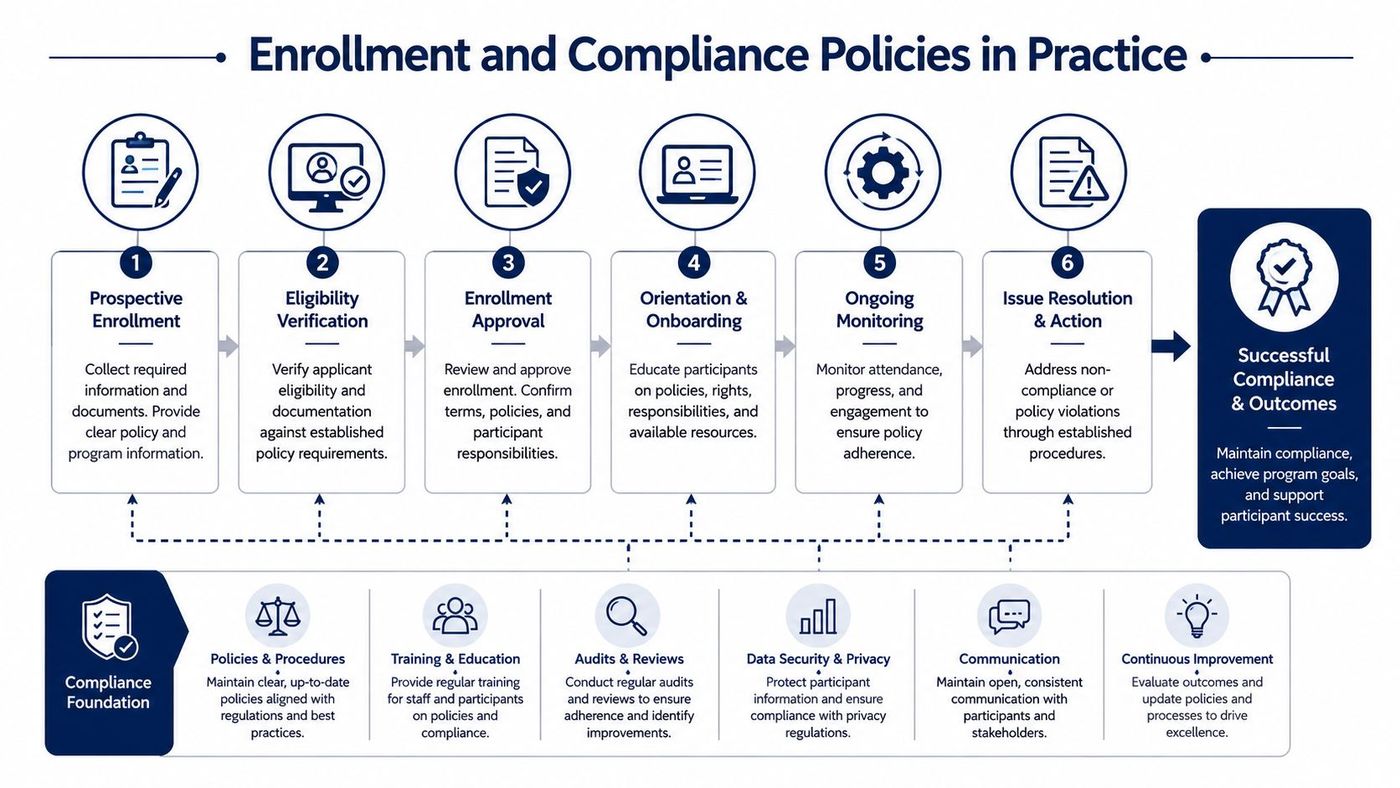
Microsoft allows an Intune administrator to permit a user to enrol up to 15 devices, with exceptions for paths including Windows Autopilot, Configuration Manager co-management, Android Enterprise dedicated devices, and bulk or device-enrollment-manager scenarios. The Intune device-limit documentation explains those exclusions.
That rule matters when employees use multiple phones, tablets, and laptops, or when a clinic shares devices across shifts. Define ownership and shared-device rules before users begin enrolling personal hardware. Intune's restriction controls can also block devices by platform, version, manufacturer, or ownership type, as described in Microsoft's device enrolment restriction guidance.
A practical baseline can require encryption, an approved operating-system version, screen-lock protection, and jailbreak or root detection. The business can also define a remediation window before access is restricted, but that window must reflect the risk of the data and the support capacity available.
Compliance status depends on enrollment. Microsoft states that a device must be enrolled in Intune to display compliance status, and administrators manage the relevant settings under Endpoint security > Device compliance > Compliance policy settings in the Intune admin centre. Conditional access should use those signals to control Exchange, SharePoint, Teams, and other protected resources.
Don't promise a weekly review while nobody owns it. Assign an administrator to review compliance summaries, investigate repeated failures, document exceptions, and maintain a change record. Privacy and retention decisions should also align with the organisation's Canadian data privacy obligations.
Enrolling every employee phone into full MDM is a blunt solution. On a personal device, full management can expose information employees reasonably consider private, including personal applications, device details, and potentially location-related information. A security programme that ignores that concern will create resistance, shadow use, and workarounds.
For BYOD, start with MAM through App Protection Policies. Protect corporate email, OneDrive, and Teams inside their approved applications. Apply encryption, selective wipe, and copy-and-paste restrictions to business data while leaving personal content outside the work boundary.
Conditional access makes that model useful. An unmanaged personal phone can receive limited access to SaaS services while the organisation blocks risky actions such as downloading attachments to local storage. The policy should reflect the sensitivity of the information, the employee's role, and the device's ownership.
A clear rubric works better than a universal rule:
MAM has boundaries. It can't apply operating-system patches, enforce every device-wide setting, or provide the same full remote-wipe capability as MDM. That limitation isn't a reason to reject MAM. It's a reason to document what the control does, what it doesn't do, and which risks require a different treatment.
Canada's federal endpoint guidance emphasises centralised inventory, configuration, and protected logging, while recent Intune capabilities add more nuanced options such as multi-administrator approval for policy changes, custom macOS compliance, and Android browser-based enrollment for personal devices. Those developments reinforce the right question: not “How do we manage everything?” but “What must the organisation control to protect business data?”
Healthcare, legal, and finance organisations shouldn't present Intune as another Microsoft subscription. They should treat it as an access-control and compliance layer that helps connect identity, device state, business applications, and audit evidence.
For organisations handling protected health information, HIPAA Security Rule concepts such as access control, device protection, and audit controls provide a useful design reference. Canadian organisations must also apply PIPEDA's reasonable-safeguards principle where the legislation applies. The exact legal obligations depend on the organisation, province, sector, and data activity, so Intune doesn't replace a privacy assessment or legal advice.
Intune can support the evidence trail behind those safeguards. Administrators can identify enrolled devices, apply configuration, evaluate compliance, restrict access when the device falls outside policy, and document exceptions. Microsoft Purview can complement that design through data-loss prevention and sensitivity-label controls, helping prevent sensitive records from moving to unsanctioned destinations.
| Intune Controls Mapped to Compliance Requirements | Intune Control | Evidence Source |
|---|---|---|
| Controlled access | Conditional access based on identity and device compliance | Entra and Intune policy records |
| Device protection | Encryption, configuration profiles, and restrictions | Device configuration and compliance reports |
| Managed endpoints | Enrollment, ownership classification, and inventory | Intune device records |
| Response to non-compliance | Access restriction and remediation workflows | Compliance status and access-policy results |
| Accountability | Administrative roles, approvals, and protected logging | Intune and Microsoft 365 audit records |
The Canadian public-sector material cited earlier is significant because it shows a mature pattern: enrollment, authentication, device verification, and resource access operate together. Microsoft also positions Intune as a packaged endpoint platform in Canada, with its Canadian pricing page listing Intune at CAD $81.40 and identifying E5 capabilities such as EPM, Cloud PKI, and Enterprise App Management.
That doesn't make Intune automatically compliant. A misconfigured policy can block a clinician, leave a personal device over-managed, or create false confidence. The control layer works only when administrators define ownership, access conditions, exception handling, evidence retention, and review responsibilities.
Self-management is reasonable when one internal administrator can maintain the environment, the device fleet is modest, and regulatory evidence requirements are limited. It becomes fragile when that same person handles Microsoft 365, identity, security incidents, onboarding, vendor coordination, and urgent support.
The operational pain appears in specific moments. A clinician can't reach an approved clinical application after a conditional-access change. A sales team loses access on a Monday because a policy assignment was too broad. An auditor asks for historical compliance evidence, but nobody maintained a documented review process.
| Self-Managed Intune vs Co-Managed Intune Support | Self-Managed | Co-Managed with CloudOrbis |
|---|---|---|
| Coverage hours | Limited to internal availability | Shared responsibilities with an agreed escalation path |
| Compliance reporting | Built and maintained internally | Reporting cadence and evidence preparation are shared |
| Policy changes | Dependent on one administrator's knowledge | Documented runbooks and controlled change ownership |
| Incident response | Internal triage and vendor escalation | Internal team retains context while the partner supports diagnosis and remediation |
| Flexibility | Full internal control | Responsibilities can be divided by workload, platform, or risk |
A co-managed model doesn't mean surrendering control. The internal IT lead can approve business decisions, manage user context, and retain ownership of priorities. A partner can maintain policy documentation, monitor drift, support escalations, and prepare recurring evidence.
The deciding question is simple:
If your team can't commit to monthly policy reviews and documented change control, the risk sits in that gap, not in the Intune licence.
For a low-risk environment, self-management may be sufficient. For a regulated business with clinical, financial, or legal data, co-managed support can provide continuity when the internal administrator is unavailable and a second set of eyes before a high-impact policy reaches production.
Start on Monday with a controlled 30-day Intune readiness plan, not a tenant-wide rollout.
Review tenant health, identity groups, existing endpoint tools, licensing, device ownership, and current access exceptions. Record which applications depend on local infrastructure and which can move directly to cloud-based management.
Pilot enrollment with 10 devices representing the fleet. Include the operating systems, user roles, and ownership types that create support risk. Validate application delivery, encryption, sign-in, local administrator removal, reporting, and recovery before expanding.
Create a baseline compliance policy, then connect conditional access to mail and Teams. Start with a controlled scope and an exclusion for emergency administration. Test both compliant and non-compliant devices so the IT team knows exactly what users will experience.
For iOS and Android BYOD, configure application protection rather than defaulting to full MDM. Test selective wipe, data transfer restrictions, sign-in behaviour, and the support process for employees who change phones.
Maintain a change log covering policy purpose, owner, approval, assignment, test result, and rollback approach. Use that record during knowledge-transfer sessions and future audits. A technically correct policy without an accountable owner will drift.
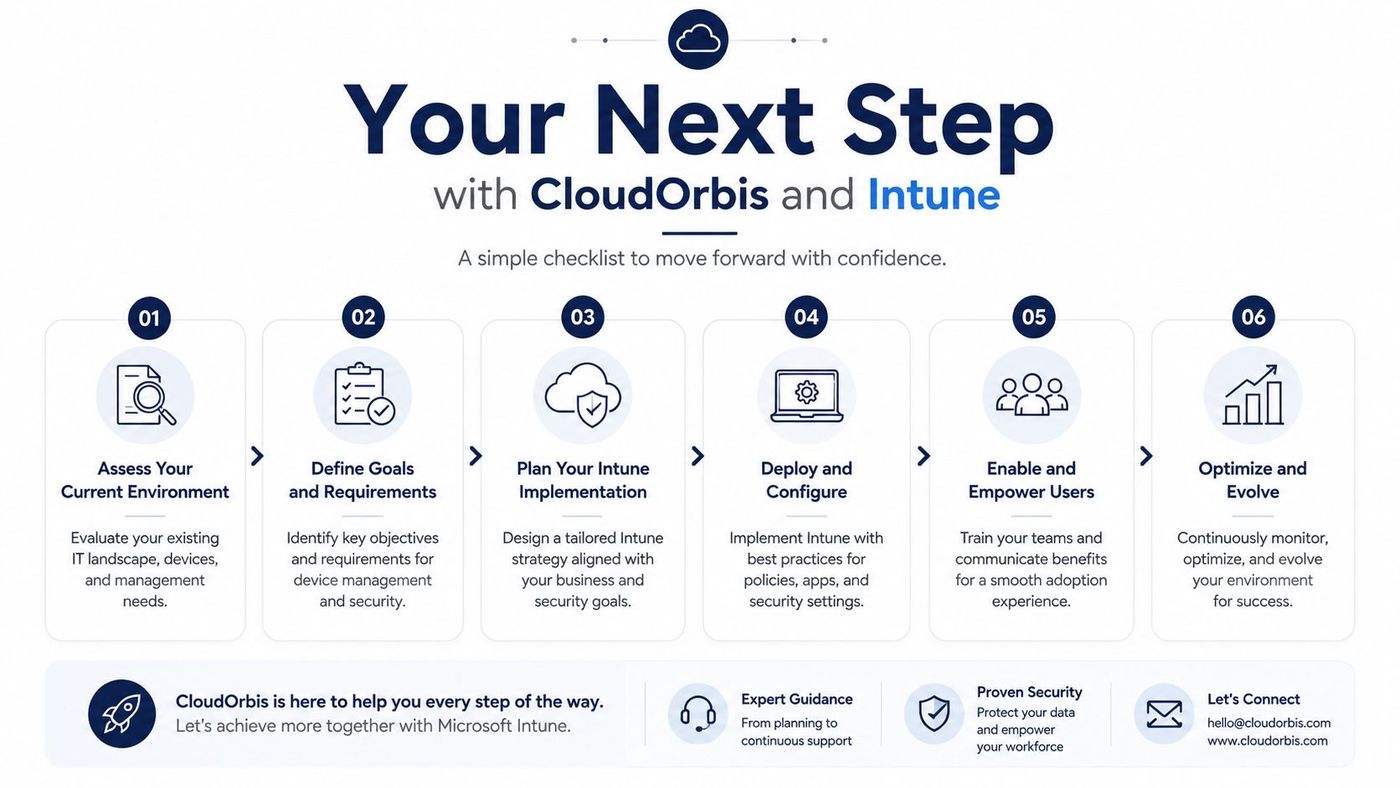
CloudOrbis can support this work through a scoping call, a fixed-scope pilot, knowledge-transfer sessions for the internal IT lead, and optional ongoing managed services after the policies stabilise. Its managed IT services model can fit organisations that need shared operational responsibility rather than a complete replacement for internal IT.
Book a 30-minute Intune readiness review to receive a written gap assessment and a recommended deployment pattern before committing budget or staff time.
CloudOrbis Inc. helps Canadian SMBs design, implement, and operate Intune device management around security, privacy, and compliance requirements. Visit CloudOrbis Inc. to arrange your readiness review and turn unmanaged endpoints into a controlled access layer.
Book a 30-minute call with a senior engineer. No sales script, just straight answers about your environment.


