

September 20, 2026
Disaster Recovery Plan Business Continuity for SMBsBuild a disaster recovery plan business continuity strategy tailored for Canadian SMBs. Covers risk assessment, RTO/RPO, backup, testing, and ownership.
Read Full Post%20(1).webp)
Usman Malik
Chief Executive Officer
June 22, 2026
A familiar problem lands on a business leader's desk every week. A manager shares a proposal, contract, spreadsheet, or client file in a hurry. The work gets done, but nobody is fully sure who still has access, whether the link can be forwarded, or how that file would be audited later if a compliance question came up.
That's where many organisations underestimate OneDrive. They treat it as convenient cloud storage when it should be treated as a governed collaboration tool. In Canadian businesses, especially in healthcare, legal, finance, engineering, and other regulated environments, OneDrive file sharing sits right at the intersection of productivity, privacy, and accountability.
Used well, it helps teams move quickly without turning every shared file into a hidden risk. Used casually, it creates exactly the kind of exposure that becomes painful during an incident review, client dispute, or policy audit.
A common scenario looks harmless at first. A director needs feedback on a sensitive pricing file, clicks Share, sends the link, and moves on. Later, someone realises the document reached more people than intended, or that access stayed open long after the project ended.
The issue usually isn't malicious behaviour. It's unmanaged sharing. People default to whatever is fastest, and fast choices tend to ignore least-privilege access, review cycles, and revocation. In practice, that means confidential files can circulate more widely than leadership expects.
For Canadian SMBs, the primary problem isn't only file access. It's the lack of governance around that access. If your organisation needs to align with privacy obligations such as PIPEDA, or it handles healthcare-related information that calls for tighter operational controls, then shared links can't be treated as casual convenience.
Uncontrolled file sharing often starts as a workflow shortcut and ends as a governance issue.
Security teams also know that file sharing is part of a broader exposure surface. If an attacker gains access to an account, poorly governed sharing can make the blast radius worse. That's why file permissions, access review, and identity controls belong in the same conversation as detection and response. For a practical look at that wider security context, CloudOrbis has a useful article on threat detection and response.
Microsoft 365 gives organisations more control than many users realise. OneDrive sharing is built around explicit access controls rather than open posting. Users can share by link or by direct recipient, apply permissions such as view, edit, and review-only, and use options including password protection, expiration dates, restricted downloads, and Specific people links, as described in this overview of OneDrive file sharing features and limitations.
That matters because governance starts with design. If your sharing model supports revocation, restricted access, and review, your business has a workable control surface. If it doesn't, every shared file becomes a trust exercise.
Leaders don't need to memorise every menu in Microsoft 365, but they do need to understand the trade-offs behind each sharing choice. Good OneDrive file sharing starts with one principle: give the minimum access needed for the minimum time needed.
When someone shares a file in OneDrive, the first decision is usually the link type. This choice has more impact than is often realized.
For most regulated use cases, Specific people should be the baseline. It's the cleanest way to reduce accidental forwarding and keep access intentional.
Practical rule: If you'd hesitate to send the file to a broad distribution list, don't use a broad sharing link.
Microsoft 365 also supports explicit permission controls such as view, edit, and review-only, along with passwords and expiration dates. Owners can revoke access or change settings later through the Manage Access pane, which makes these controls especially useful in regulated sectors. CloudOrbis also covers the broader tenant-hardening side in this post on Microsoft 365 security in Calgary.
Permission settings should reflect the work being done, not a user's status or seniority. A partner reviewing a proposal usually doesn't need editing rights. An external accountant may need edits in one folder but only view access elsewhere.
Here's the quick-reference version.
| Permission Level | What It Allows | Best For |
|---|---|---|
| View | Opens and reads the file without changing its content | Policies, reports, approvals, reference documents |
| Edit | Changes file content and supports active collaboration | Working documents, drafts, shared spreadsheets |
| Review-only | Allows review-focused participation without full editing freedom | Feedback cycles, controlled document review, approvals |
What works is consistency. If your team always starts with Specific people and then decides whether edit rights are necessary, your risk drops quickly.
What doesn't work is letting every employee invent their own sharing standard. That creates a mix of broad links, inherited access, and unclear ownership. It's also where business leaders lose visibility.
A sensible internal standard often looks like this:
That approach keeps OneDrive file sharing useful without letting convenience outrun governance.
The most reliable way to secure external sharing is to stack small controls together. No single setting solves everything, but several settings used properly make risky behaviour much harder.
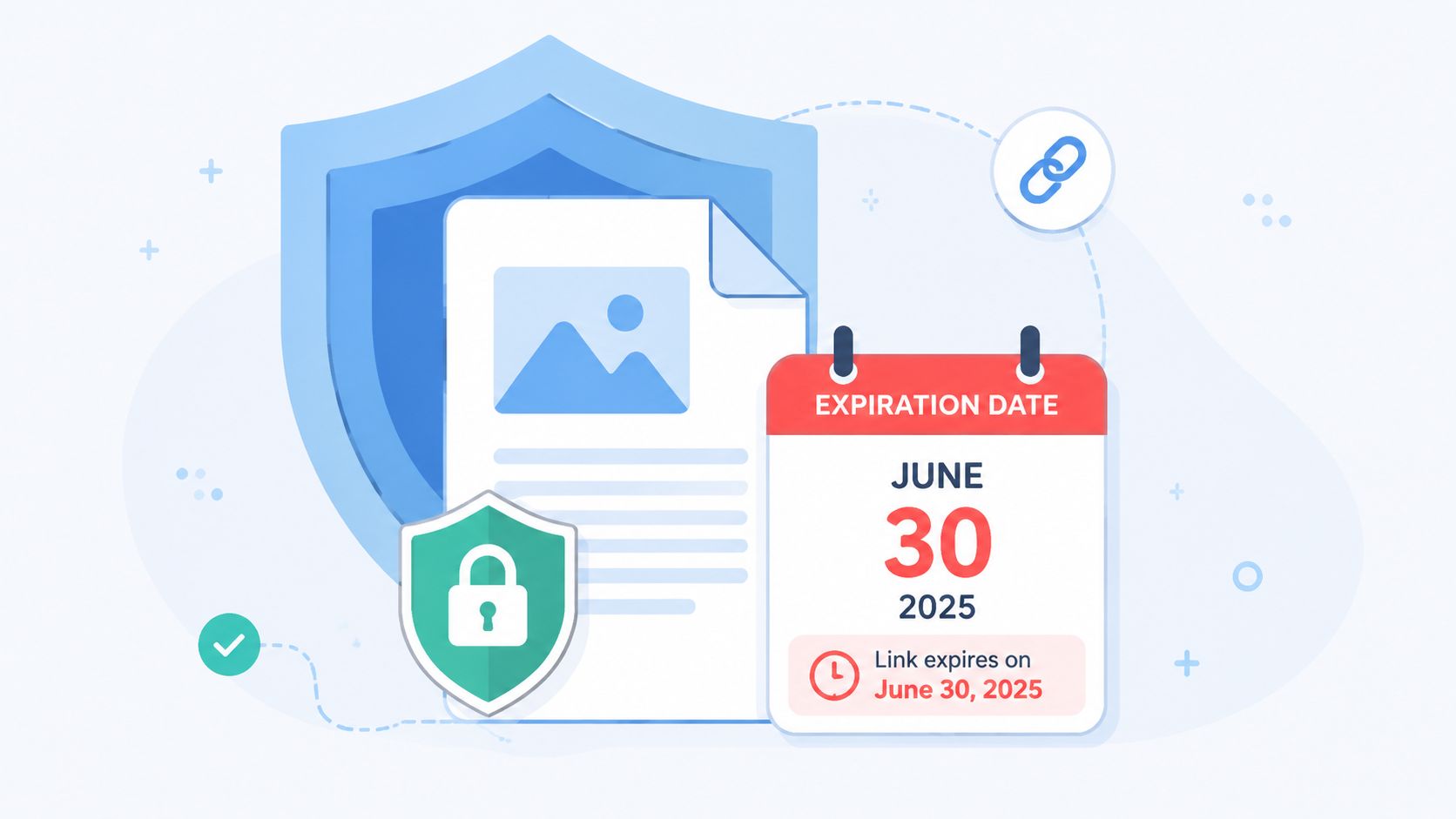
Microsoft's guidance supports a simple pattern: use Specific people links, combine them with view-only permissions, add expiration dates and passwords where available, and review access through Manage Access because links can still be forwarded. That combination is particularly important for Canadian organisations handling sensitive records, as outlined in Microsoft's guidance for sharing files and folders in OneDrive.
Expiry dates are one of the best controls for external work. They fit real business scenarios such as vendor reviews, contract negotiations, bid submissions, and board packages.
If access only needs to exist for a limited period, don't rely on memory to remove it later. Set the expiration when you create the share. That turns revocation into a default behaviour instead of an admin clean-up task.
Passwords add friction in a good way. They don't replace identity controls, but they do add another gate between a forwarded link and the underlying file. For sensitive document exchange, they're worth using when the option is available.
For files that recipients only need to read, use view-only and enable restricted download options where your environment supports them. This helps reduce uncontrolled local copies.
If your team regularly shares contracts, HR records, or client packages outside the organisation, it's also useful to compare your OneDrive process against broader document-sharing practices. This guide on how to securely share documents offers practical guardrails that complement Microsoft 365 controls.
Review access after the business purpose ends. Security usually fails in the gap between “done” and “removed.”
Many organisations set permissions once and never revisit them. That's the weak point. OneDrive's Manage Access panel is where file owners can see who has access, stop sharing, remove links, and adjust settings later.
That matters because sharing decisions aren't permanent. Projects end. Advisors change. Suppliers rotate. A legal file that needed external review last month may need to be locked down today.
This is also where identity strategy becomes relevant. Strong sharing settings work much better when they sit alongside good authentication practices, role-based access, and user lifecycle controls. CloudOrbis discusses those building blocks in its article on identity and access management.
OneDrive file sharing works across web, desktop, and mobile, but the user experience isn't identical. Leaders should know the good news first: the core model stays consistent even when the interface changes.
The web interface usually gives the clearest view of sharing options. It's often the easiest place to choose recipients, adjust permissions, and review access before sending.
In Windows File Explorer, sharing feels more natural for users who work from the desktop all day. They can right-click, share quickly, and stay inside their normal workflow. That convenience is helpful, but it also means training matters. Fast access can lead to fast mistakes if users don't understand what each option does.
On macOS Finder, the experience is broadly similar. The flow differs visually, but the underlying choices still revolve around who gets access and what they can do with the file.
Mobile apps on iPhone and Android are valuable for field teams, travelling staff, and executives working between meetings. They keep collaboration moving, but small screens make it easier to miss detail. For sensitive files, many organisations prefer that staff create or review external shares from the web interface rather than from a phone.
Instead of writing separate policies for every device, standardise the decision logic:
That consistency is especially important in firms that exchange client records and financial documents. CloudOrbis has a related perspective on secure file sharing for accountants, and the same operational thinking applies to other document-heavy industries.
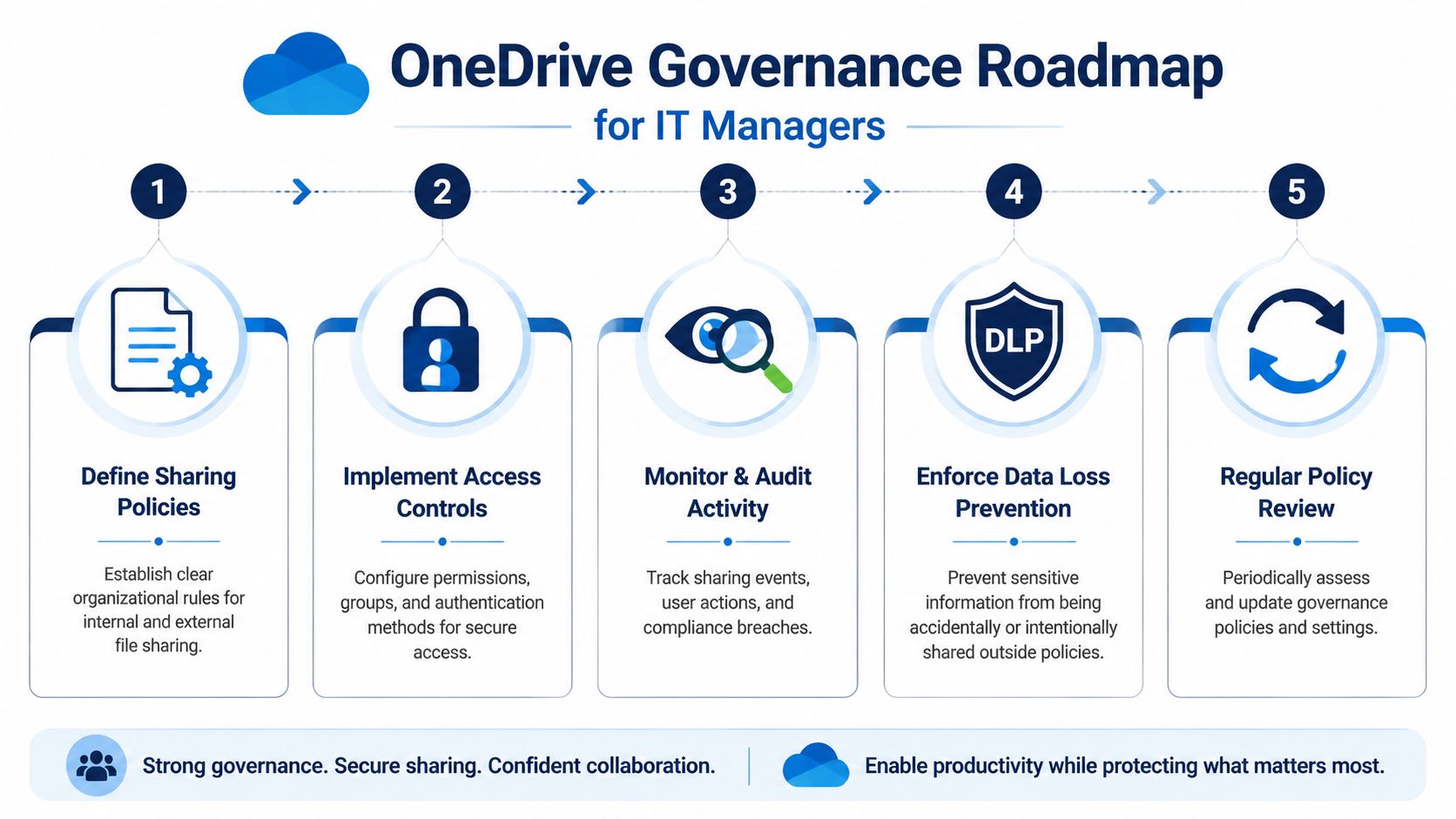
At the user level, OneDrive sharing is about sending a file safely. At the IT level, it's about proving how sharing is controlled, monitored, and corrected.
OneDrive has matured into an auditable governance surface. Administrators can run a built-in sharing report from OneDrive or SharePoint settings, save it to a chosen location, and receive it by email when processing is complete. That creates a measurable control layer for tracking items exposed through links or direct access, as described in this resource on the sharing settings report for Microsoft OneDrive and SharePoint.
Without reporting, file sharing becomes anecdotal. A manager says access was removed. A user says the link was only sent to one party. IT has to trust what happened.
With reporting, administrators can identify exposed items, review external sharing patterns, and tighten controls where needed. That's a practical advantage for organisations that need stronger internal oversight under PIPEDA or contractual security obligations. It also helps when legal, privacy, or executive teams ask for evidence rather than assumptions.
A durable OneDrive governance practice usually includes a few recurring actions:
Good governance isn't only about blocking risky behaviour. It's about making permitted behaviour visible and reviewable.
This is also where OneDrive should connect to broader security operations. Audit data becomes more valuable when it feeds into your wider monitoring and compliance workflows. Teams building that broader picture may find this guide to SIEM and compliance useful as a companion resource.
For Canadian IT managers, the key mindset shift is this: OneDrive sharing shouldn't be left to end users alone. It should sit inside a governed Microsoft 365 model that includes reporting, policy, review, and response. CloudOrbis explores that broader operational discipline in its article on data security management.
The most effective OneDrive file sharing setups are rarely the most complex. They're the most disciplined.
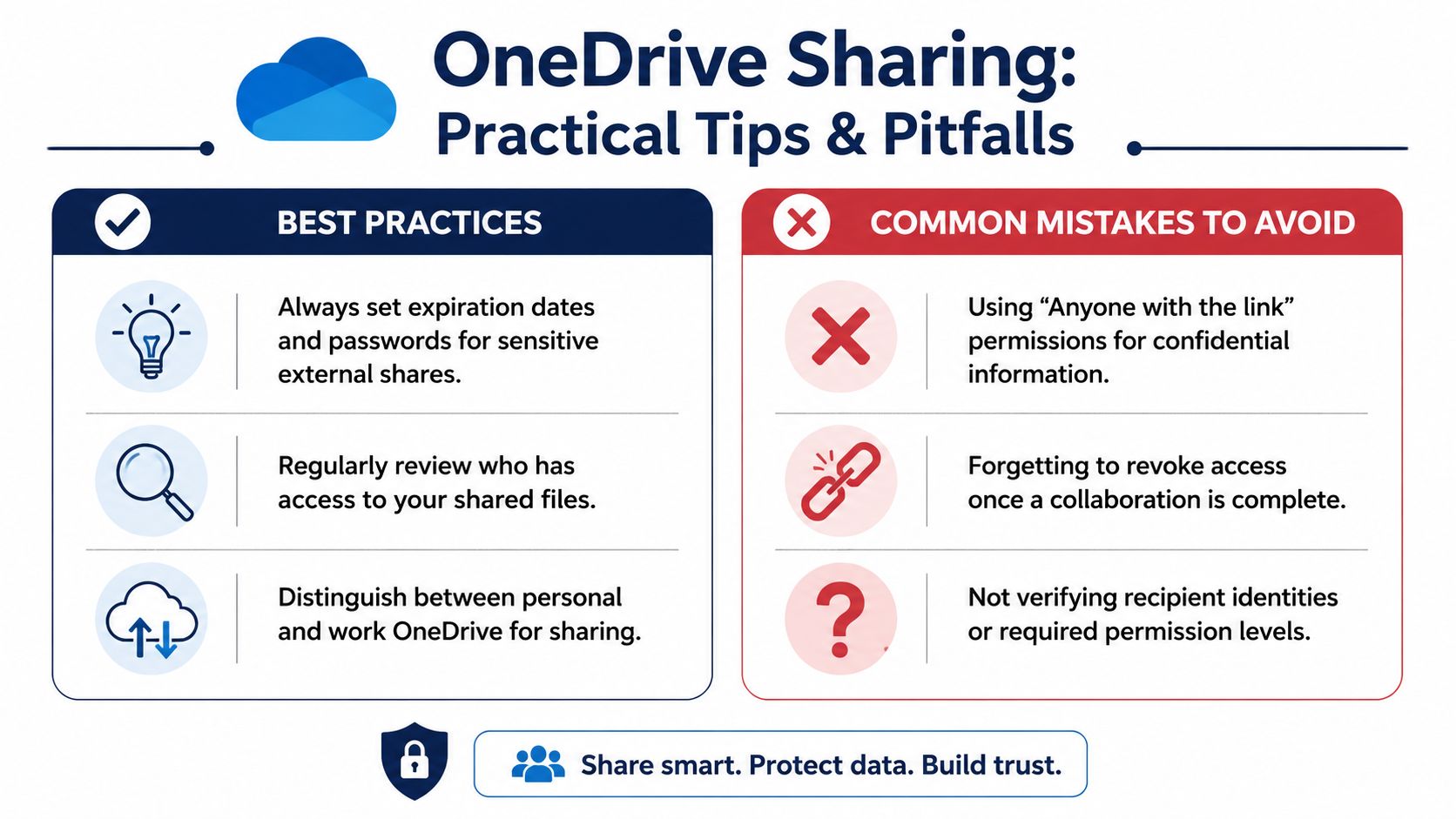
The first mistake is using broad links for sensitive information because it feels faster. The second is failing to review access later. The third is treating personal convenience as the same thing as organisational policy.
OneDrive is strong when the business sets standards and users follow them. It becomes messy when every person improvises their own sharing model.
If your leadership team wants secure collaboration without slowing the business down, the answer isn't to avoid OneDrive. It's to govern it properly.
Cloud collaboration works best when security, compliance, and usability are designed together. CloudOrbis Inc. helps Canadian organisations build Microsoft 365 environments that support secure sharing, strong access control, and practical governance for real-world teams. If your business needs a cleaner OneDrive sharing model, better oversight, or a broader Microsoft 365 security review, CloudOrbis can help you put the right controls in place.
September 20, 2026
Disaster Recovery Plan Business Continuity for SMBsBuild a disaster recovery plan business continuity strategy tailored for Canadian SMBs. Covers risk assessment, RTO/RPO, backup, testing, and ownership.
Read Full Post
September 19, 2026
Database Migration Services Explained for Canadian SMBsLearn how database migration services move data to the cloud securely with minimal downtime. Types, risks, costs and a Canadian provider checklist.
Read Full Post
September 18, 2026
Business VoIP Telephone Systems Explained for SMBsLearn how business VoIP telephone systems work, what they cost and how to choose a secure, resilient option for your Canadian SMB.
Read Full Post
