Virtual Desktops for Windows: A Guide for Canadian SMBs
Explore virtual desktops for windows. Our guide compares AVD, Windows 365, and VDI for Canadian SMBs, covering security, cost, compliance, and implementation.

Explore virtual desktops for windows. Our guide compares AVD, Windows 365, and VDI for Canadian SMBs, covering security, cost, compliance, and implementation.
A lot of Canadian business leaders are in the same spot right now. Their teams work from the office, home, job sites, clinics, and client locations. Laptops are aging. Security expectations keep rising. Staff want a simple experience, but IT still has to protect sensitive data and support compliance.
That pressure gets worse when desktops are tied too closely to physical devices. If a machine fails, a user loses access. If a file sits on the wrong endpoint, risk goes up. If every employee setup is slightly different, support gets slow and audits get messy.
Virtual desktops for windows give businesses another path. They separate the user’s Windows experience from the physical PC, so the desktop can be managed, secured, and delivered in a more controlled way. But that phrase covers very different tools. Some are just productivity features inside Windows. Others are full business platforms built for remote work, security, and regulated environments.
That distinction matters. A CEO deciding between a simple Windows feature and an enterprise virtual desktop strategy isn’t making a technical choice alone. They’re making a decision about risk, cost model, employee experience, and how much control the business needs.
A hybrid workplace sounds flexible on paper. In practice, it often leaves leadership juggling too many moving parts at once. One employee needs secure access from home. Another uses a shared workstation in a clinic. A manager travels between sites. Finance wants predictable costs. Compliance teams want tighter control over where data lives.
Traditional desktop management struggles in that environment. Every laptop becomes its own little island. Updates drift. Security settings vary. Replacements take time. Troubleshooting usually starts with the device, even when the problem is the way the business delivers applications and data.
The Windows environment adds urgency. Windows 11 holds 67.14% of desktop market share, while Windows 10 still holds 31.27% as of March 2026 according to Statcounter’s Windows desktop market share data. Microsoft ended free support for Windows 10 on October 14, 2025, which means businesses still relying on it face a more serious security and compliance discussion than before.
For Canadian SMBs in healthcare, legal, finance, and manufacturing, that isn’t just an IT housekeeping issue. Unsupported systems can affect security posture, audit readiness, and operational continuity.
A physical PC still has a role. But the old model assumes people, apps, and data stay in one place. That assumption no longer holds.
Common signs that the desktop model is under strain include:
A virtual desktop shifts the question from “How do we manage every PC?” to “How do we deliver a secure Windows workspace wherever the employee is?”
That can support better standardisation, smoother remote access, and more flexible growth. It also fits the broader shift many firms are already evaluating between local infrastructure and cloud services. If that’s part of your planning, this breakdown of cloud computing vs on premise is useful context.
Practical rule: If your desktop strategy depends on every user having the right device in the right place at the right time, the strategy is probably too fragile.
One of the biggest sources of confusion is simple. People use the same phrase, “virtual desktops,” to describe two completely different things.
That creates bad decisions. A business leader hears that Windows already has virtual desktops built in and assumes the company may not need anything more. In reality, the built-in feature and business-grade VDI solve different problems.
Windows 10 and 11 include a built-in virtual desktop feature. It lets one user create separate desktop views on the same machine. For example, a law firm partner might keep email and Teams on one desktop, document review on another, and admin tasks on a third.
That’s useful. It reduces visual clutter and helps people organise work.
But Microsoft is very clear about what it is. In its own documentation, Windows virtual desktops are “a window management feature, not a security feature or a performance feature” as explained in Microsoft’s Old New Thing article.
So if someone says, “We already have virtual desktops in Windows,” the next question should be, “Do you mean desktop organisation, or do you mean hosted desktops for business use?”
A true virtual desktop solution is different. It hosts the Windows desktop or applications centrally, often in the cloud or a data centre, and delivers that experience to the user over a network.
That model is built for things the local Windows feature does not provide on its own:
Think of built-in Windows virtual desktops like having multiple desks inside one office. You’re still in the same building, using the same computer. You’ve just organised your workspace better.
A business VDI platform is more like moving the whole office into a secure business centre with controlled entry, monitored systems, and central administration. Staff can still work from different places, but the environment is managed very differently.
Built-in Windows virtual desktops help one person stay organised. Enterprise virtual desktops help an organisation deliver secure, managed workspaces at scale.
A local Windows virtual desktop is enough when the goal is individual productivity. It’s a good fit for users who want cleaner multitasking on a single device.
A hosted virtual desktop becomes the better choice when the business needs broader outcomes:
| Need | Built-in Windows virtual desktops | Enterprise VDI or cloud desktop |
|---|---|---|
| Organise windows and tasks | Strong fit | Possible, but overkill on its own |
| Secure remote access | Not designed for this | Strong fit |
| Centralise apps and data | Limited | Strong fit |
| Support compliance controls | Limited | Much stronger |
| Standardise user environments | Limited | Strong fit |
For Canadian organisations handling patient files, legal records, or financial data, this difference isn’t academic. It affects whether the desktop approach aligns with privacy, governance, and risk requirements.
Once you separate productivity features from desktop delivery platforms, the next question is practical. Which model fits your business?
Most SMBs will end up comparing three broad options:
The right answer depends less on buzzwords and more on your operating model. How much control do you need? How fast do you need to scale? How much management complexity can your team handle?
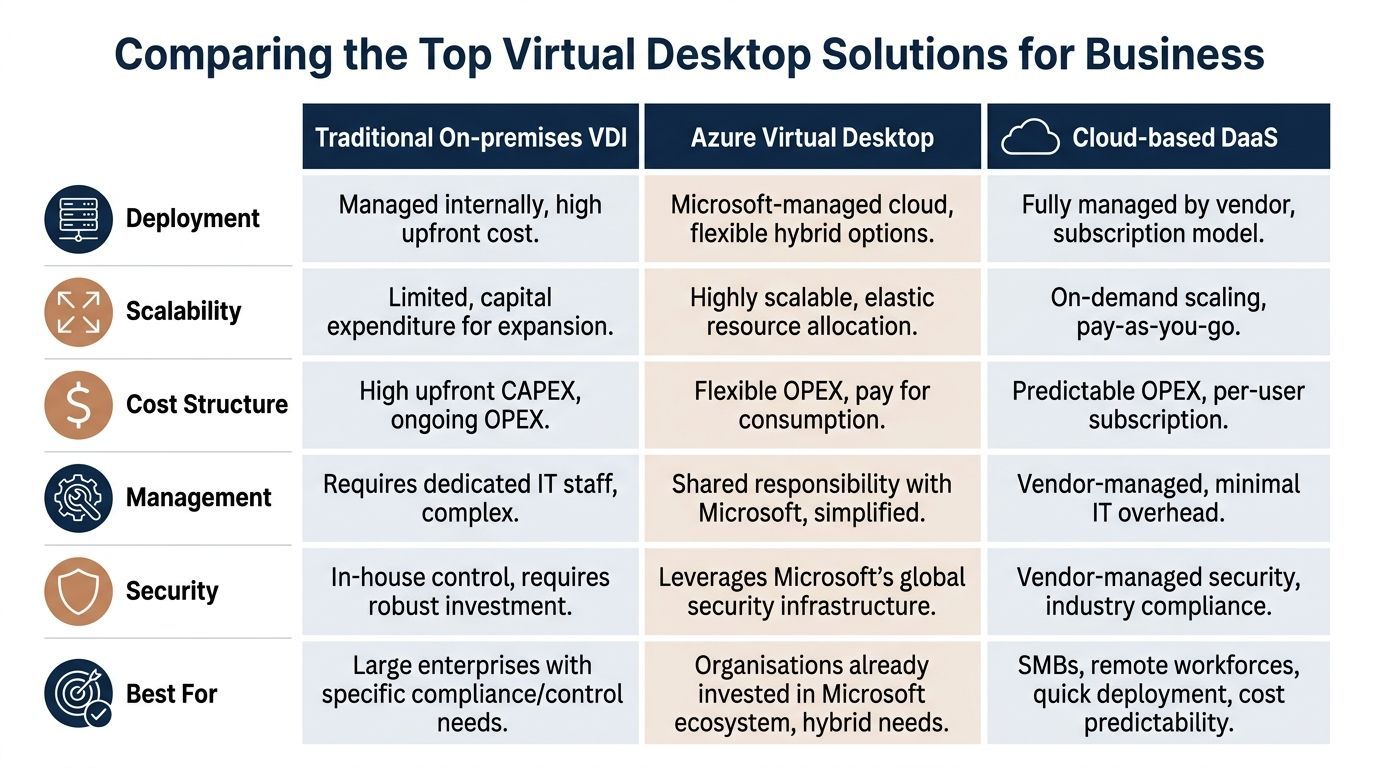
This is the classic enterprise model. The business owns or manages the infrastructure that hosts desktops in its own environment.
It offers control. That matters to firms with very specific infrastructure requirements, legacy application dependencies, or internal policies that favour local hosting.
But that control comes with operational weight.
For many mid-sized firms, on-premises VDI can be the right technical answer but the wrong operational answer. It asks the business to become more of an infrastructure operator than it may want to be.
Azure Virtual Desktop, usually shortened to AVD, sits in the middle ground. It gives businesses a Microsoft-based virtual desktop platform in the cloud, with flexibility around pooled and personal desktops.
That flexibility is a major reason it gets serious attention from Canadian SMBs already using Microsoft 365, Entra ID, Intune, or Azure services.
One of AVD’s biggest advantages is multi-session Windows. For certain user groups, that changes the economics significantly. Azure Virtual Desktop’s multi-session Windows 10/11 Enterprise can support 10 to 20 concurrent users per 8 vCPU VM, deliver 15 to 25% lower Azure compute costs than single-session VDI, and reduce monthly costs by an estimated CAD $150 to 300 per host for a Canadian healthcare provider scenario using Azure’s Canadian data centres in Toronto and Quebec, as outlined in Microsoft Learn’s Windows 365 end-user hardware requirements reference.
That matters for environments like clinics, administrative teams, and shift-based work where not every user needs a dedicated machine all day.
AVD is not a “set it and forget it” product. It’s more flexible than a simple Cloud PC, but that also means more design choices around host pools, profiles, applications, identity, security policies, and cost governance.
A strong planning phase matters. For firms comparing vendors and cloud operating models, this overview of cloud computing providers in Canada can help frame the broader decision.
This category focuses on simplicity. A Cloud PC gives each user a persistent Windows desktop delivered as a service. Other DaaS platforms follow a similar idea, even if the underlying management model differs.
For a CEO, this option is often the easiest to understand. Each employee gets a cloud-hosted desktop. Pricing is usually more predictable. Deployment is often faster. Day-to-day management can be simpler than designing a pooled VDI environment.
Cloud PC style services usually give up some of the flexibility that makes AVD attractive. They may not be as cost-efficient for highly shared environments, and they may offer less room for workload-specific optimisation.
| Option | Best known strength | Main trade-off | Strong fit for |
|---|---|---|---|
| Traditional on-premises VDI | Control and customisation | Highest management burden | Firms with specialised infrastructure needs |
| Azure Virtual Desktop | Flexibility and scalable cost control | More architectural complexity | Microsoft-centric businesses with mixed user types |
| Cloud-based DaaS | Simplicity and predictable delivery | Less flexibility in some scenarios | SMBs that want fast rollout and lower admin overhead |
If your business needs a desktop platform that adapts by role, season, or location, AVD often deserves a close look. If you want the simplest path to a managed Windows desktop, a Cloud PC model may be easier to operate.
The reason virtual desktops for windows keep coming up in boardroom and IT planning conversations is simple. They solve business problems, not just technical ones.
For a clinic, that problem may be protecting patient information across shared devices. For a legal practice, it may be keeping client files inside a controlled environment. For a logistics company, it may be giving dispatch, finance, and operations staff secure access without rebuilding every endpoint strategy from scratch.

A virtual desktop can keep business data closer to the managed environment instead of spreading it across many local machines. That doesn’t remove the need for security policy, but it does give IT more control over where work happens and how systems are configured.
That’s useful in regulated sectors where one unmanaged endpoint can create outsized risk.
Examples include:
Compliance work gets harder when every endpoint is slightly different. Virtual desktops make it easier to keep users on approved builds, approved apps, and approved configurations.
That helps with governance in practical ways:
If a snowstorm closes an office, a workstation fails, or a team suddenly has to work remotely, virtual desktops can reduce the scramble. The user’s workspace is no longer anchored to one device in one location.
That kind of resilience matters more than it used to. Teams expect continuity, and clients do too.
Some leaders still hear “virtual desktops” and picture a niche tool or a difficult legacy setup. That view is out of date.
The VDI market has matured for over 18 years since VMware Horizon launched in 2008, according to Softdrive’s history of virtual desktop infrastructure. That long development cycle matters because today’s platforms support much stronger monitoring, reliability, and operational visibility than early VDI deployments did.
Mature VDI platforms aren’t interesting because they’re new. They’re valuable because they’re stable enough for work that can’t stop.
Virtual desktops also align well with proactive support. When desktops are delivered through a managed platform, IT teams can monitor performance, standardise changes, and respond to issues with more consistency than they can in a purely device-by-device model.
That’s one reason many SMBs pair virtual desktop initiatives with broader service improvements such as centralised support, monitoring, and policy management. The business case becomes stronger when desktop delivery is part of a wider service model, not a standalone project. This is also why many leaders review the broader benefits of managed IT services at the same time.
Virtual desktop pricing confuses a lot of decision-makers because there isn’t one cost model. There are several, and each one shifts spending in a different way.
The simplest way to think about it is this. Traditional VDI usually leans toward capital expenditure. Cloud-hosted options usually lean toward operational expenditure.
With on-premises VDI, the business typically funds the environment more directly through infrastructure and internal operations.
That often includes:
The important point is that the invoice for hardware is only part of the picture. The operating burden matters too.
Cloud-hosted desktop services move more of the spend into recurring operating costs. Instead of buying the full platform upfront, you pay for capacity, licensing, and service delivery over time.
That changes budgeting in useful ways:
| Model | Spending style | CFO view |
|---|---|---|
| On-premises VDI | Higher upfront investment | More control over owned assets, but harder to scale quickly |
| Azure Virtual Desktop | Consumption-based cloud spend | Flexible, but requires active cost management |
| Cloud PC or DaaS | Subscription-oriented | Easier to forecast per-user cost |
For finance leaders, predictability often matters as much as absolute cost. A platform that is slightly less optimised on paper may still be the better business fit if it simplifies forecasting and avoids surprise infrastructure projects.
Microsoft licensing can be the part that trips up otherwise solid plans. Eligibility, bundled rights, user entitlements, and platform dependencies all affect the overall cost.
That’s why licensing should be reviewed before architecture is finalised, not after. If your organisation is already untangling Microsoft subscriptions, this guide to Office 365 licensing is a useful starting point.
For broader cloud budgeting, vendor pricing models also matter. This external comparison of AWS vs Azure vs Google Cloud price comparison is helpful because it shows how cloud economics can vary by provider and workload style.
Don’t ask only, “What does the desktop cost per user?”
Ask:
A cheaper design can become expensive if it creates support drag, licensing confusion, or scaling problems later.
A virtual desktop project succeeds or fails long before users sign in for the first time. The planning work decides most of the outcome.
That doesn’t mean the project has to be complicated. It means the business should answer the right questions in the right order.
Many teams begin by debating platforms. A better starting point is user behaviour.
Map employees into practical groups such as:
A clinic receptionist, a controller, and a CAD user may all need “Windows desktops,” but they don’t need the same design.
This step is often underestimated. A remote virtual desktop depends heavily on network quality. That is especially important for businesses operating across multiple provinces, rural sites, warehouses, or field locations.
As Venn’s remote virtual desktop overview notes, successful deployments depend on stable, high-speed network connections. For Canadian businesses, especially in geographically dispersed areas such as Northern Alberta, bandwidth, latency, regional ISP quality, and data residency planning all affect whether the user experience feels smooth or frustrating.
Network warning: A virtual desktop can be perfectly designed and still feel broken if the branch office or remote user connection can’t support it.
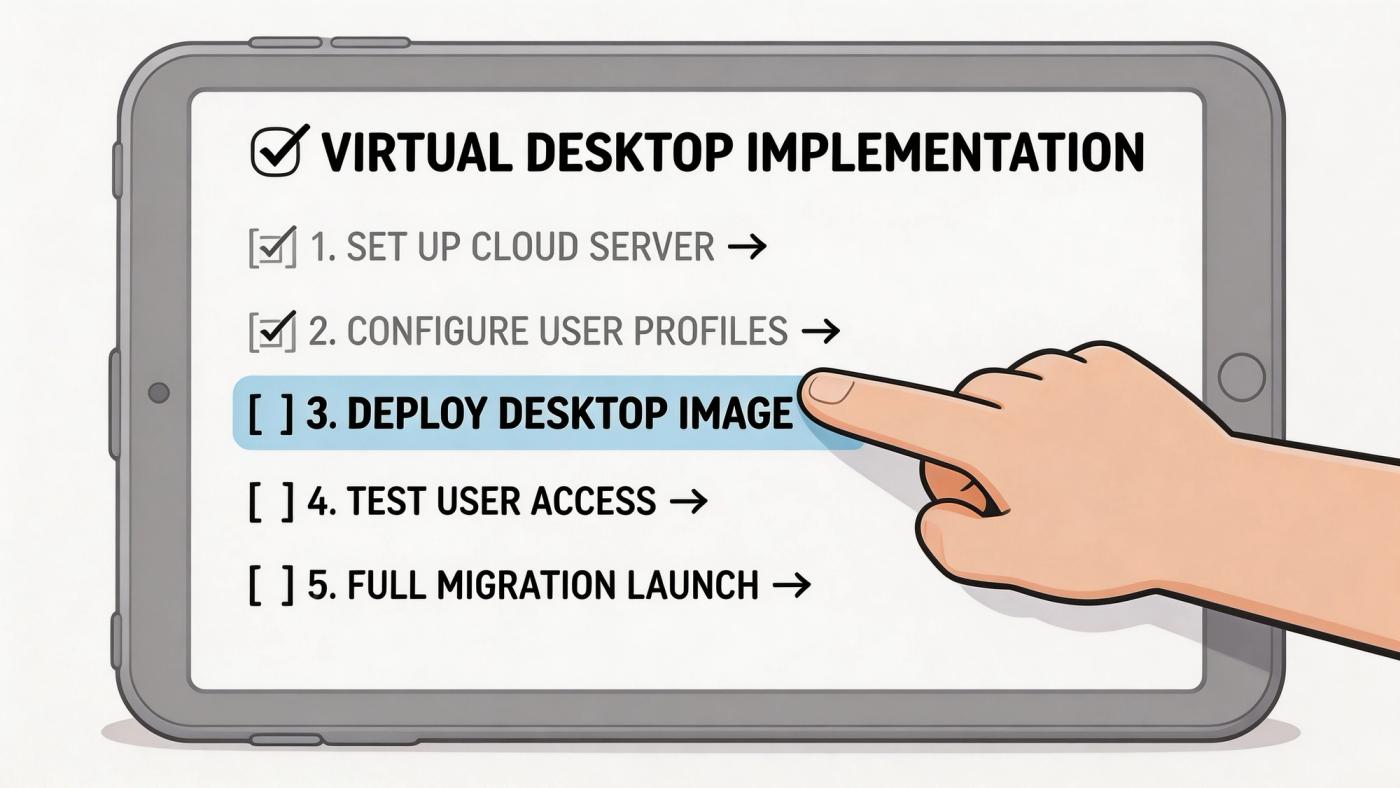
A sound implementation plan usually includes these checkpoints:
After launch, the work shifts from migration to service management. Shutdown behaviour, failed sessions, app freezes, and login issues can all shape user confidence in the platform.
For teams building their internal support playbooks, this reference on shutdown event ID troubleshooting is useful background when diagnosing Windows environment issues during testing and steady-state operations.
Even a well-designed rollout can stall if users don’t understand what’s changing.
A good communication plan should explain:
That sounds basic, but it prevents a technical improvement from being perceived as disruption.
Virtual desktops can improve security, flexibility, and desktop consistency. They can also introduce design decisions that most SMBs don’t want to manage alone.
The challenge isn’t just choosing a platform. It’s aligning platform, licensing, identity, security policy, network readiness, support workflows, and compliance requirements into one operating model that people can live with.
Canadian SMBs don’t operate in a generic environment. They deal with Canadian data residency expectations, provincial privacy obligations, and regional connectivity realities.
A provider working in that context can help businesses answer practical questions such as:
A good managed IT partner should reduce complexity, not add another layer of jargon.
That usually means helping with:
One option in this space is CloudOrbis Inc., which provides managed IT services, cloud solutions, cybersecurity support, and virtual desktop planning for Canadian SMBs.
For a CEO or operations leader, the primary value of a partner is focus. Your team shouldn’t have to become VDI specialists just to deliver a secure Windows workspace.
The business outcome is clearer than the technology stack:
If you’re already evaluating outsourced support or co-managed IT, this overview of IT managed services for small business gives useful context for what that relationship should look like.
A virtual desktop strategy works best when it’s treated as an operating model, not just a software purchase.
If your business is weighing virtual desktops for windows and needs a practical plan that fits Canadian compliance, security, and budget realities, talk to CloudOrbis Inc.. A structured assessment can help you decide whether built-in Windows features, Azure Virtual Desktop, Cloud PCs, or a hybrid approach make the most sense for your users and your risk profile.
Book a 30-minute call with a senior engineer. No sales script, just straight answers about your environment.

