How to Use Microsoft 365 Copilot: A 2026 Guide
Learn how to use Microsoft 365 Copilot step by step in 2026. Covers licensing, security, integration, prompt workflows, & ROI for Canadian firms.

Learn how to use Microsoft 365 Copilot step by step in 2026. Covers licensing, security, integration, prompt workflows, & ROI for Canadian firms.

A Canadian team can burn hours polishing drafts, chasing meeting notes, and rewriting the same status update in three different apps, yet still miss the primary bottleneck. Microsoft says Copilot usage data appears in the Microsoft 365 admin centre within 72 hours, not instantly, which means the organisations that get value from it are the ones that treat rollout as a governed change process, not a magic switch. For a practical starting point, the conversation should begin with how to use Microsoft 365 Copilot in a way that matches permissions, data access, and business priorities, not just prompts.
Mid-sized firms usually feel the pain first in Outlook, Teams, Word, and Excel. That's where Copilot can help with drafting, summarising, and restructuring work, but only when the tenant is ready and the right users can reach the right data. If you want the broader small-business Microsoft 365 context before going deeper, CloudOrbis has a useful overview on Microsoft 365 for small business, and Bridge Global's Microsoft 365 Copilot insights are also worth a look for leaders comparing use cases.
A typical Canadian mid-sized firm doesn't struggle because people are lazy, it struggles because knowledge work fragments across inboxes, chats, files, and meetings. A manager drafts a proposal in Word, the sales lead rewrites it in Outlook, someone else searches Teams for the latest customer context, and the finance team tries to reconcile the final version with a spreadsheet that's already stale. Copilot fits into that mess by sitting inside the Microsoft 365 apps people already use, so drafting, summarising, and reshaping content happens closer to the work itself.
That matters because the value isn't abstract. Microsoft's own admin guidance says the Copilot usage report is built to show how users adopt, retain, and engage with Copilot and its enabled apps, which makes it the right place to judge whether training and governance changes are proving effective. For leaders, that shifts the question from “Can we try AI?” to “Can we make everyday work less manual without exposing data we shouldn't?”
The most useful deployments start with mundane work. Meeting follow-ups become shorter, first drafts take less time to assemble, and routine status updates stop consuming half a morning. For Canadian IT and business leaders, that's the key benefit, less time spent formatting, more time spent deciding.
One caution shows up early. Copilot doesn't create value just because it's licensed, and it won't magically locate content that the tenant or the user can't reach. Microsoft's FAQ notes that Copilot's answers depend on the data it can access, so “how to use it” is really a question of permissions, sources, and configuration as much as prompting.
Practical rule: if the right files, mailboxes, or meeting notes aren't in scope, Copilot won't fix that with a better prompt.
That's why rollout discipline matters more than enthusiasm. Microsoft's report and the surrounding governance model give teams a clean way to test whether adoption is real and whether the workflow changes are paying off. For a Canadian mid-market organisation, that's the difference between a useful pilot and a noisy experiment.
Before anyone writes prompts, the tenant has to be licensed correctly. In Canada, Microsoft lists Microsoft 365 Copilot Business at CAD $24.43 per user per month, billed yearly, and that pricing needs to be weighed against the type of work users do. Independent Canada-focused analysis notes that Microsoft's 2025 Work Trend Index reported Copilot users save 11.5 hours per month on average, or about 2.9 hours per week [Fusion Computing ROI analysis]. For many mid-market organisations, that makes high-volume knowledge roles the first sensible candidates.
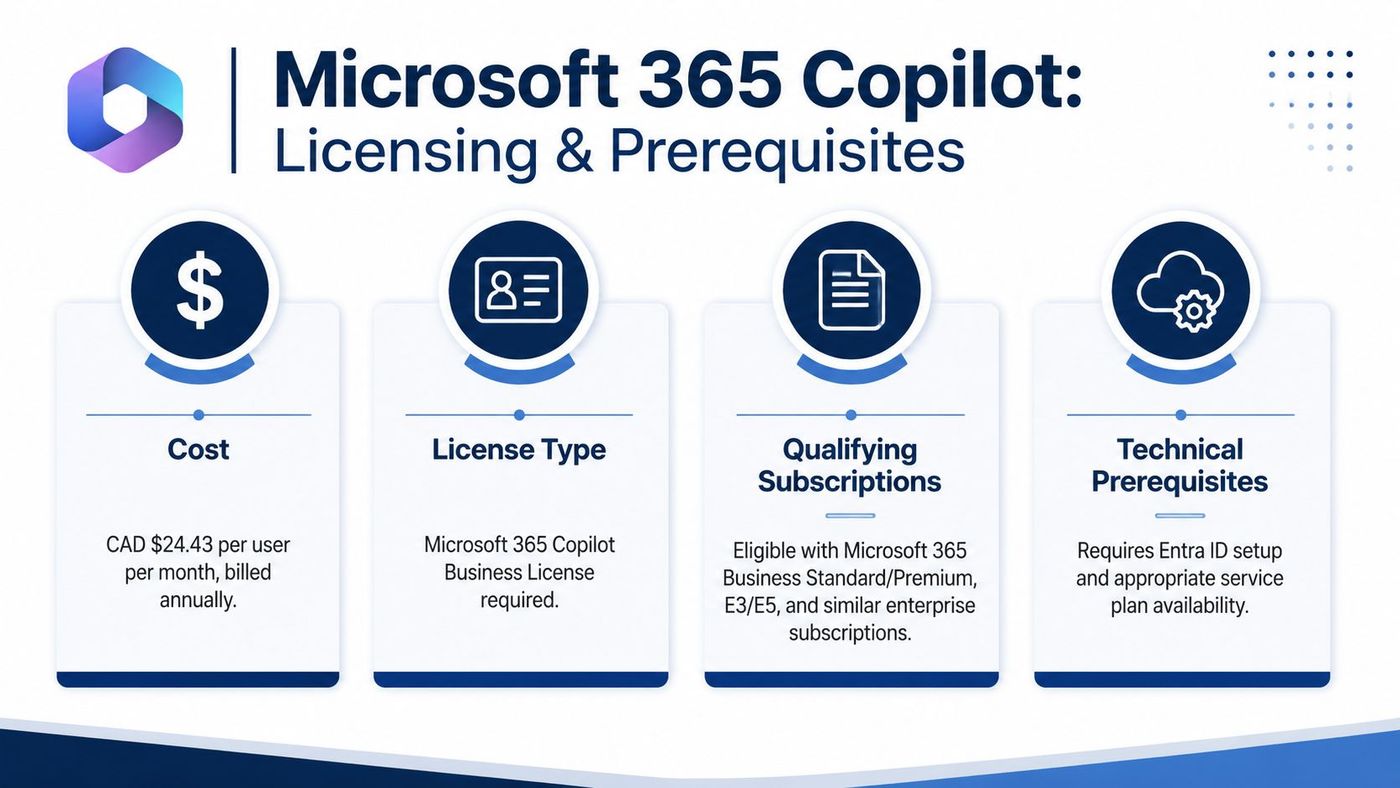
Copilot isn't a standalone add-on in the way many leaders expect. The organisation needs the right Microsoft 365 subscription foundation, plus Entra ID, and service availability in the Microsoft 365 tenant. If you're validating readiness, focus on who already has eligible licences, which workspaces store the content Copilot should use, and whether the identity layer is properly set up.
Microsoft's Canada pricing page and the independent ROI analysis together make the economic case clear, but the practical question is still role fit. A finance manager who spends the day reconciling reports, a sales leader who lives in email and proposals, or an HR lead drafting onboarding material will usually see the benefit faster than a user whose work is already highly structured and mostly transactional.
Useful benchmark: if a licence costs CAD $24.43 per user per month and a typical user saves time every week, break-even should be tested against actual role patterns, not intuition.
Start with the basics. Confirm the user has an eligible subscription, verify Entra identity is in place, and check whether the apps and data sources that matter are available in the tenant. Then identify any departments that hold sensitive material or use restricted libraries, because those areas need tighter controls before broader enablement.
For Canadian SMBs, the strongest deployment model is usually a phased one. MSP Corp's guidance recommends a pilot group, representative business cases, and a KPI set that tracks time saved and productivity gains, which is much more useful than trying to turn on the entire organisation at once [MSP Corp guide]. CloudOrbis also documents Microsoft licensing work through its Microsoft Enterprise License resource, which can help leaders compare entitlement models before they commit.
The short version is simple. Licence the right people, verify the identity and tenant prerequisites, then pilot against roles where time savings will be visible and defensible.
Turning Copilot on is not the same thing as making it useful. The Microsoft 365 admin centre is where the enablement work starts, but the primary task is aligning licences, identity, and data access so the assistant can work inside the boundaries you've set. That's where many rollouts stumble, because the software is ready before the tenant is.
First, confirm that the intended users are licensed and that the feature is available in the tenant. Then review the Microsoft 365 settings and org-level configuration so Copilot is enabled for the right groups rather than everyone by default. After that, check the data sources Copilot should use, because its answers depend on the content it can reach.
If a user asks why Copilot missed a file that exists somewhere in Microsoft 365, the answer is usually permissions, scope, or source setup. Microsoft states plainly that without adding knowledge sources and proper Entra configurations, Copilot can't surface documents even if they exist elsewhere in Microsoft 365 [Microsoft Copilot FAQ].
Start with a narrow group and validate behaviour before widening access. Then review whether group policy, conditional access, and workspace permissions match the way people collaborate. If content is siloed, unlabeled, or overexposed, Copilot will reflect that reality.
For leadership teams, the governance lesson is blunt. Data hygiene is part of Copilot configuration, not a separate cleanup project later. If departments have inconsistent file structures, loose sharing, or weak classification, the assistant will surface inconsistencies rather than solve them.
Copilot is only as useful as the content boundaries you've defined for it.
The admin centre gives you the visibility, but the tenant rules determine whether the user experience feels smart or broken. That's why a disciplined enablement process matters more than a flashy launch email.
Once the tenant is ready, significant gains are realized by putting Copilot into the flow of everyday app work. In Word, that usually means drafting, restructuring, and refining content without starting from an empty page. In Excel, it's about asking for help interpreting patterns in a sheet instead of manually scanning columns for anomalies.
In Word, the useful pattern is simple. Give Copilot a clear business outcome, then ask it to draft or rework the content around that outcome. For example, a proposal team can start with a rough outline and ask Copilot to build a first-pass executive summary, then refine tone and structure before human review.
In Excel, the value comes from analysis support. Teams often use it to help frame what the data appears to be saying, especially when a spreadsheet is dense and the question is more about interpretation than formulas. That doesn't replace financial judgement, but it does reduce the time spent translating raw tables into something a manager can act on.
Teams is where meeting waste becomes visible. When the meeting recap is turned on and the right permissions exist, users can capture follow-up work without manually stitching notes together later. Outlook is similar, since email summarisation can shorten thread review and make the next action easier to identify.
The best deployments don't train everyone with the same prompt library. Sales wants proposal support, HR wants onboarding drafts, finance wants structured analysis, and IT wants ticket summaries that surface the issue, impact, and next step. If you push one generic training pack across all four groups, adoption tends to flatten.
What works: task-specific prompting tied to the app people already trust.
What doesn't: asking users to “just experiment” without showing how Copilot fits their job.
User permissions still matter here. If a team can't reach the underlying file, mailbox, or meeting artefact, Copilot won't bridge that gap. That's where the combination of app enablement and access review becomes critical.
CloudOrbis uses Microsoft 365 environment work as part of broader service delivery, and its Office for Business 365 resource is a practical reminder that app configuration and business process design should move together, not separately. That's the mindset that keeps Copilot from becoming a novelty feature no one uses twice.
Security has to be part of the Copilot conversation from day one, especially in regulated Canadian environments. The Government of Canada requires Enterprise Data Protection in Entra ID, authentication through Government of Canada identities only, and Copilot for Work capability enabled in the Microsoft Edge sidebar before public-sector deployment [Government of Canada policy implementation notice]. That tells you everything you need to know about how seriously browser-based work scenarios are treated.
The starting point is Enterprise Data Protection in Entra ID. After that, classify and label sensitive data so Copilot's outputs stay inside the guardrails your organisation already expects. Then extend Information Protection policies to the workflows where Copilot is being used, not just to the files stored in isolation.
That sequence matters in healthcare, legal, finance, and any organisation that handles regulated or personal information. Leaders often want to know whether Copilot can be used safely in those contexts, but the better question is whether the tenant has been prepared to constrain access and preserve policy alignment.
The main risk isn't that Copilot is too powerful, it's that the tenant is too loose. MSP Corp's deployment guidance points to oversharing as the main technical pitfall, which is exactly the kind of issue that shows up when access controls and labelling are treated as afterthoughts [MSP Corp guide]. If the source material is messy, the assistant will inherit that mess.
For Canadian organisations with compliance obligations, the right deployment posture is conservative first, expansive later. CloudOrbis' Microsoft 365 security in Calgary discussion fits well here, because secure rollout and identity discipline are part of the same operational problem.
The practical rule is straightforward. Lock down identity, classify content, and verify policies before widening usage. If you do that first, Copilot becomes easier to govern, not harder.
Strong prompts help, but they only work when the rollout gives people a reason to trust the output. The clearest deployments begin with business cases users already understand, such as onboarding, proposal drafting, analysis, and support triage. Canadian MSP guidance recommends a pilot group, training on representative business cases, a network of Copilot champions, and KPIs tied to time saved and productivity gains [MSP Corp guide].
For HR onboarding, keep prompts outcome-focused. Ask Copilot to draft a welcome checklist from a policy summary, then ask it to turn that into a first-week guide for a new hire role. For sales, use it to shape a proposal outline from discovery notes and then tighten the language for a specific buyer. For finance, ask for a structured summary of variances or a plain-English readout of a workbook before you build the formal analysis. For IT, have it condense a ticket thread into issue, impact, and next action.
A good prompt tells Copilot what success looks like, not just what topic to write about.
That distinction matters because weak prompts often produce generic output that users distrust. Specific prompts, by contrast, reduce back-and-forth and make the result easier to review.
Start with a pilot group that spans a few functions, not just one enthusiastic department. Train those users on their own real documents, not canned demos, then collect the questions they ask when Copilot misses context or returns the wrong file. Those questions reveal where permissions, labels, or source connections need adjustment.
Build champions early. They'll show colleagues how to shape prompts, when to trust the output, and when to verify it manually. That's often more effective than a formal help article because the advice comes from someone doing the same job.
The troubleshooting step leaders skip most often is permission review. If users say Copilot can't find a document, check whether the file is available to them and whether the relevant source is connected. Microsoft's FAQ makes it clear that access boundaries govern what Copilot can surface [Microsoft Copilot FAQ].
Rollout succeeds when users get a repeatable habit, not a novelty demo. The combination of prompt examples, pilot feedback, and champion support gives you that habit.
Microsoft's Copilot usage report is the place to see whether the rollout is working. In the Microsoft 365 admin centre, go to Reports > Usage > Microsoft 365 Copilot, then open the Usage tab to review adoption and engagement metrics. Microsoft says the data is available within 72 hours, so treat it as a delayed operating view rather than a live dashboard [Microsoft Copilot usage report].
The report is meant to show how users adopt, retain, and engage with Copilot and its apps. That gives IT and business leaders a clean way to ask whether enablement is moving in the right direction. If adoption is thin, the issue may be training. If usage is uneven by app, the issue may be workflow fit. If engagement drops after launch, the issue may be governance or source quality.
To convert that into ROI thinking, compare the engagement pattern with the time savings story your pilot users are telling. That doesn't require inventing a spreadsheet fantasy. It requires checking whether the daily experience matches the business case you used to justify the licences.
Keep governance reviews on a regular cadence, especially after adding new knowledge sources or expanding access. If the assistant misses content, revisit source connections and permissions first, then review labels and tenant settings. Teams that want to go further often pair Copilot with broader workflow automation, and the logic is similar to how process automation drives productivity, tasks become less manual when the process is designed well.
For organisations that want support beyond the pilot, managed IT partners can help with the tenant, security posture, and user enablement. CloudOrbis' cost-benefit analysis resource is useful when leadership wants to compare licence spend against practical operating value.
The best practice is simple. Use the admin report, validate the role-specific value, keep refining data access, and widen usage only when the governance model can support it.
If your team is ready to move from Copilot curiosity to a controlled rollout, contact CloudOrbis Inc. for help with licensing, tenant readiness, security review, and adoption planning.
Book a 30-minute call with a senior engineer. No sales script, just straight answers about your environment.


