Mobile Device Management Microsoft Intune: How It Works
Mobile Device Management Microsoft Intune explained: enrolment, compliance, Conditional Access, licensing and security controls for Canadian SMEs.

Mobile Device Management Microsoft Intune explained: enrolment, compliance, Conditional Access, licensing and security controls for Canadian SMEs.

Your bookkeeper checks work email from her personal phone at home. A driver loses a company phone on a job site. A new hire signs in to Teams on a laptop that's months behind on updates. If you can't say who has which device, whether it's encrypted or how you'd wipe it, you've got a problem that mobile device management, Microsoft Intune is built to solve.
Most firms don't need the same control on every device. The useful decision is matching full management, app protection and access rules to who owns the device and how sensitive the data is. Get that choice wrong and you'll either intrude on staff privacy or leave company data exposed.
Microsoft Intune is Microsoft's cloud-based service for managing company and personal devices. You run it from the Microsoft Intune admin centre, connected to Microsoft Entra ID for identity and to Microsoft 365 for apps and sign-in. It manages Windows, macOS, iOS and Android from one console.
A building's badge system controls who is allowed entry, which doors open for each individual, and the response when a badge is lost. Enrolment issues the badge, policies determine the doors, and remote actions revoke access quickly.
| Capability | What It Does | Small-Business Example |
|---|---|---|
| Device enrolment | Registers a device with Intune and installs the management certificate | New laptop or phone added to company management at first sign-in |
| Configuration profiles | Sets Wi-Fi, email, VPN and device restrictions | Same Outlook and Wi-Fi setup on every company phone |
| Compliance policies | Checks minimum OS version, encryption, passcode and threat status | Blocks devices running an outdated OS from company email |
| App deployment | Pushes Microsoft 365 and line-of-business apps to devices | Teams and Outlook installed automatically for new hires |
| Update management | Controls OS and Windows update timing through update rings | Updates deferred for a five-device pilot group before the full fleet |
| App protection (MAM) | Protects company data inside managed apps, with no full device control | Staff read work email on personal phones with copy and paste blocked |
| Remote actions | Locks, retires or wipes a device | Wiping a lost laptop or retiring a departed employee's phone |
| Reporting | Shows device inventory and compliance status | Monday report of non-compliant devices sent to the office manager |
That inventory view matters because you can't secure devices you can't list. Good reporting ties straight into disciplined asset inventory management practices, so every endpoint has an owner and a status.
The Canadian gap is clear. The Statistics Canada analysis of cybersecurity risks to Canadian businesses found that in 2019, 37% of Canadian businesses reported using Internet-connected smart devices, yet only 17% of those businesses assessed the security of those devices. It also found 65% of businesses did not install security updates for software and operating systems monthly or more frequently.
Practical rule: Scan the table and mark the two or three capabilities your business needs first. Start there instead of turning everything on at once.
Full management (MDM) controls the whole device. App protection (MAM) controls only company data inside approved apps. That single distinction should drive most of your policy choices.
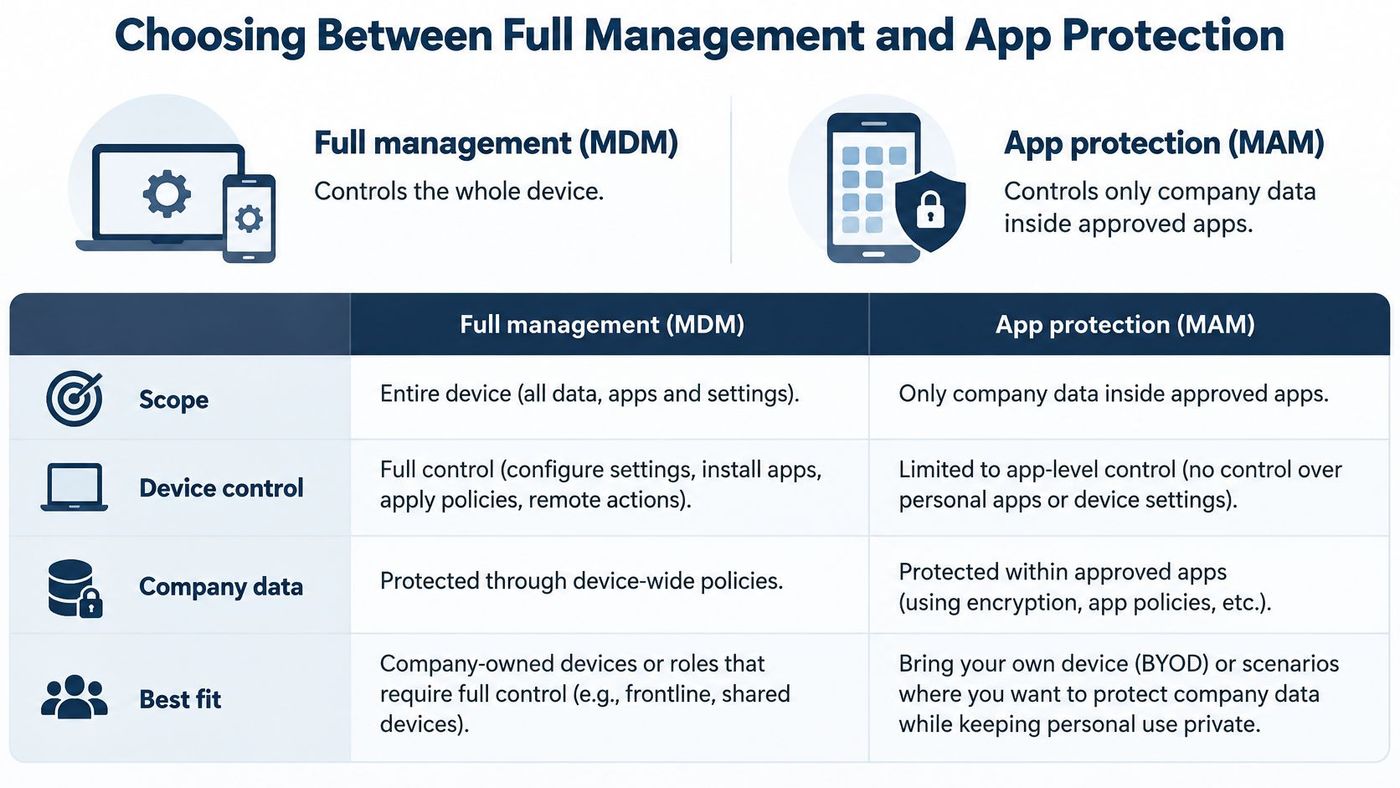
| Device Scenario | Ownership | Controls Available | Privacy Impact on Staff | Best Fit |
|---|---|---|---|---|
| Company laptop | Corporate | Full configuration, updates, encryption and remote wipe | Low | Standard office staff |
| Company phone, fully managed | Corporate | Full MDM with inventory, restrictions and remote wipe | Low | Clinicians, field and logistics staff |
| Personal phone, fully enrolled | Personal (BYOD) | Full device policies and compliance checks | High, with admin visibility on a personal device | Roles that need strict device control |
| Personal phone, app protection only | Personal (BYOD) | Managed apps only, copy and transfer limits, selective wipe | Lower, personal content stays private | Email and Teams for part-time or contract staff |
| Shared kiosk or front-desk tablet | Corporate | Kiosk lockdown and app restrictions | Low | Reception, retail or waiting-room devices |
Users won't close the gap on their own. Statistics Canada's 2018 mobile-device behaviour findings reported that 74% of Canadian Internet users took at least some action to protect their mobile device, but only about 16% used additional cybersecurity measures beyond the device's default protections. Central policy turns uneven habits into a consistent standard.
Say a dental clinic has two hygienists who use personal phones for email. App protection lets them read work email in Outlook, blocks copy and paste to personal apps, and allows a selective wipe of company data when they leave. The clinic never sees their photos or messages.
A logistics firm issuing corporate phones to drivers faces a different risk. The company owns the device, drivers install route apps, and phones go missing in transit. Full MDM is justified there.
I would match the model to who owns the device and how sensitive the data is, not to the phone brand. Give staff a short written explanation of what you can and can't see on personal devices before you enrol anyone.
The main confusion is bundling. Intune often comes inside Microsoft 365 plans, but Intune Suite features and standalone Entra ID tiers are separate add-ons. Conditional Access needs Entra ID P1 or P2, so a plan can include device management yet still lack the access control you planned around.
| Licence Option | Intune Included | Entra ID Tier Included | Best Fit for SMEs |
|---|---|---|---|
| Microsoft 365 Business Premium | Intune Plan 1 | Entra ID P1 | Small and mid-sized firms wanting one bundle with Conditional Access |
| Microsoft 365 E3 | Intune Plan 1 | Entra ID P1 | Larger firms standardizing on enterprise Microsoft 365 controls |
| Microsoft 365 E5 | Intune Plan 1 | Entra ID P2 | Regulated firms needing advanced identity protection |
| Intune Plan 1 standalone with Entra ID P1 | Intune Plan 1 | Entra ID P1 bought separately | Firms that already run Microsoft 365 but need device management only |
Prices in Canadian dollars vary by agreement and change over time, so confirm current rates with a Microsoft partner or provider before budgeting. Our guide to Office 365 licensing choices walks through the common traps.
Check licences before writing policies. A missing Entra ID tier can block the access controls your whole design depends on.
Your first deployment decision isn't a device setting. It's where the tenant lives.
Microsoft's Intune data storage and processing documentation states that tenant geography is determined primarily by the country or region selected when the Microsoft Entra directory is created, and Intune hosts Customer Data at rest in the geography aligned with that setting. Eligible customers may request migration, but the move can take up to 24 months after the request period ends.
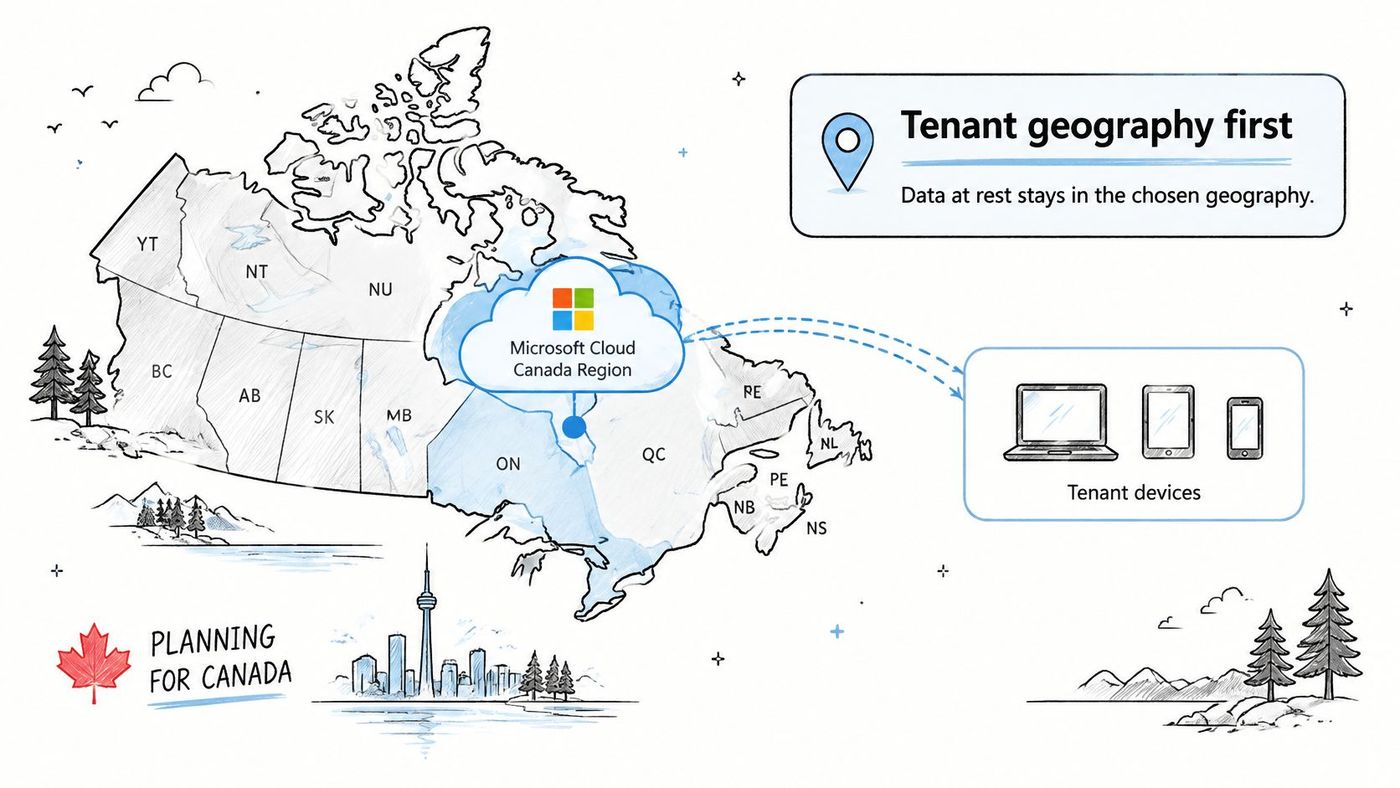
Enrol first and check geography later, and you can lock yourself into a long migration.
Say a clinic enrols every phone in its first month, then discovers during a privacy review that its directory sits in the wrong region for a contract requirement. The devices keep working, but correcting the tenant becomes a slow, disruptive project. A ten-minute check at the start prevents it.
A device doesn't get access just because it's enrolled. Intune reports a state, and Microsoft Entra ID decides. Confusing those two jobs causes most rollout surprises.
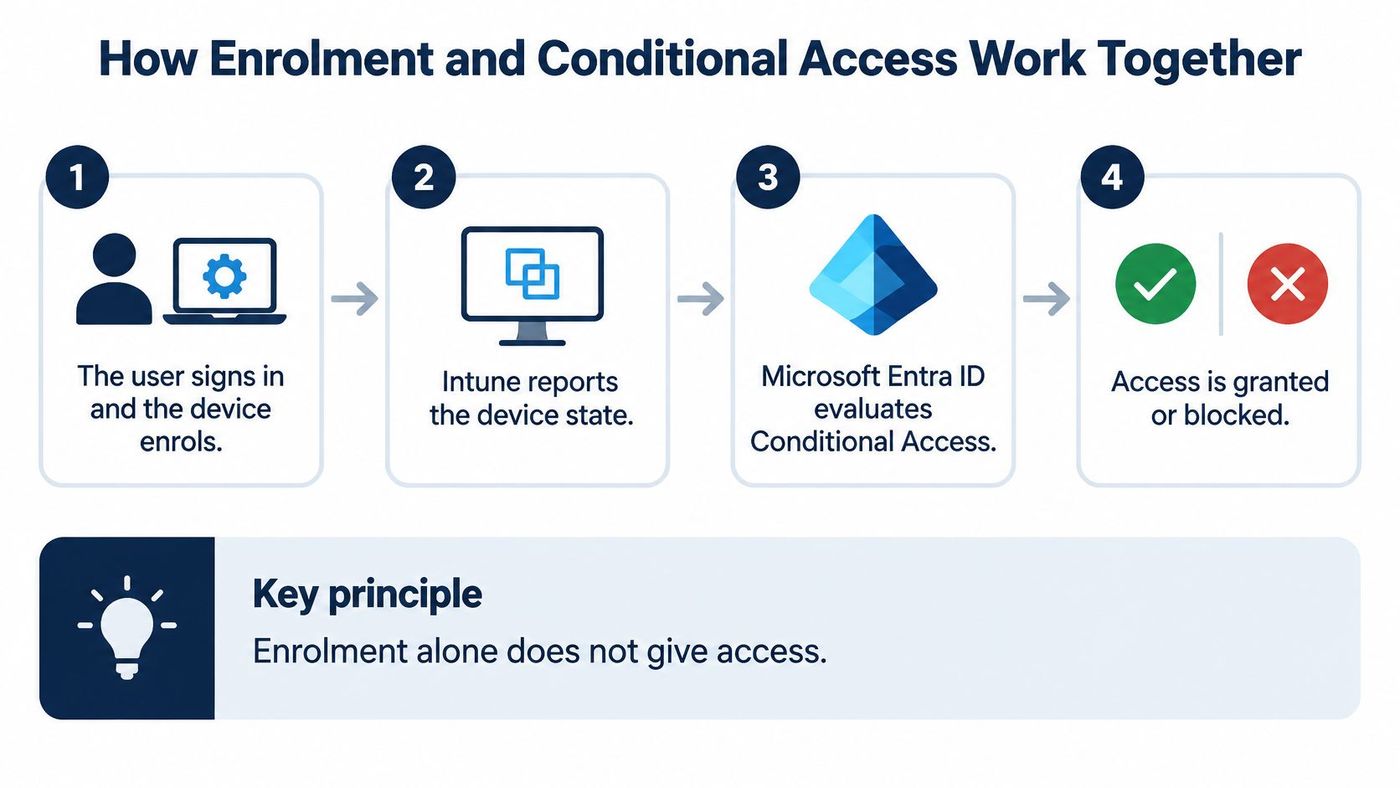
Microsoft's Intune device management documentation describes this flow, noting that if a policy requires a device to be marked compliant, access is allowed only when the compliance requirement is satisfied.
Use this analogy with staff. Compliance is the health check. Conditional Access is the door staff who reads the result and decides whether to let the device in. Passing enrolment alone doesn't open the door.
Conditional Access can also require multi-factor authentication during enrolment. It's a one-time step, and it needs Entra ID P1 or P2, so confirm licensing before you promise it to leadership. Strong identity design underpins the whole chain, as covered in our guide to identity and access management essentials.
Run two checks when access fails. First, confirm the device's compliance state in the admin centre. Second, review the Entra sign-in logs, which show the policy and reason behind each block.
A compliance policy sets the minimum device state, but access doesn't change until a matching Conditional Access policy exists. Plan the two together or you'll build checks that don't protect anything.
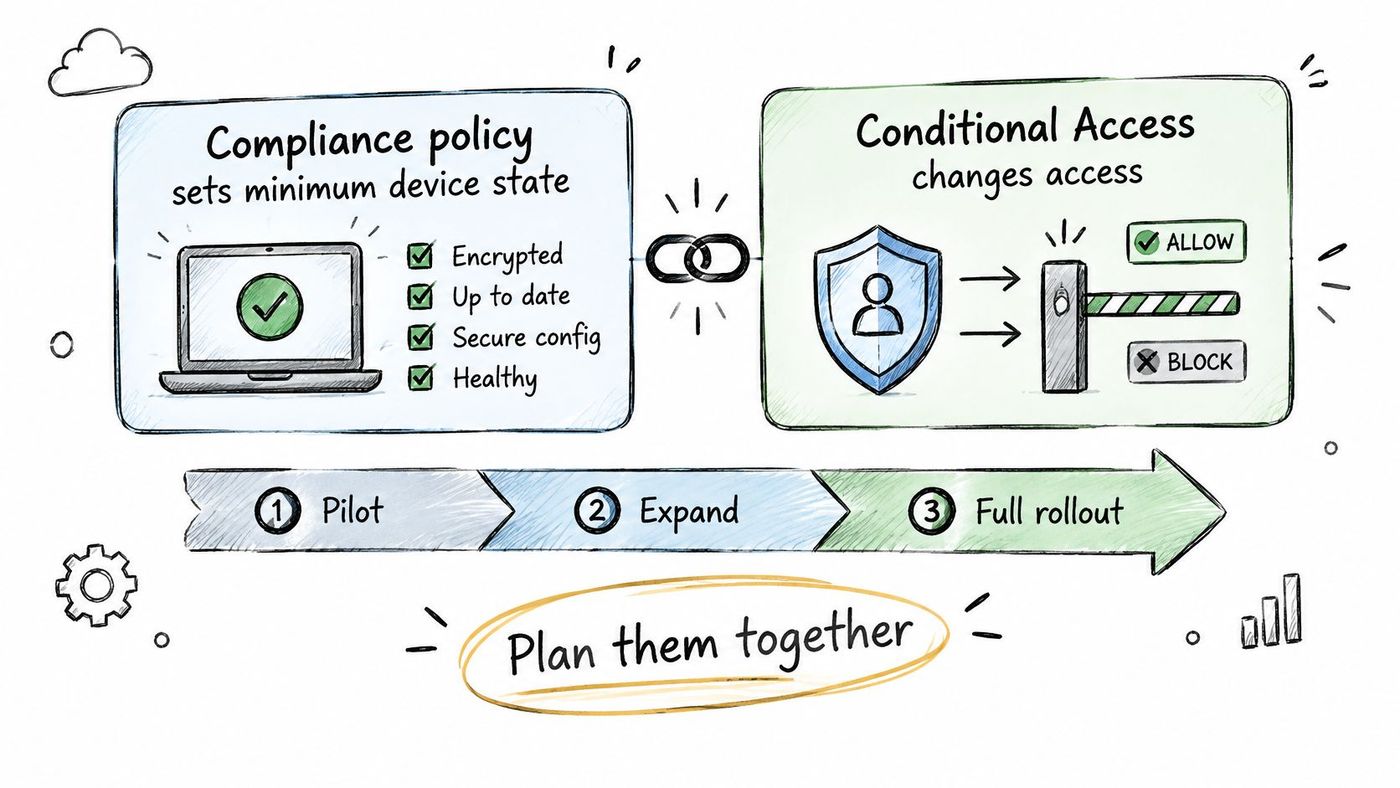
That list follows the Government of Canada's Microsoft 365 security playbook, as summarised in Microsoft's overview of what Intune is, which recommends centrally managed mobile endpoints with those controls. Our own endpoint security best practices guide covers how they fit with wider endpoint protection.
Intune enforces only what your approved policy says. Sign off a short document set first, including an Acceptable Use Policy, MFA & Password Policy, Device Policy, Remote/Hybrid Work Policy, Incident Response Plan, Disaster Recovery Plan and a Data Governance Framework based on Canadian standards. The same discipline helps when you audit access across app release pipelines, because documented ownership makes exceptions visible.
Say a 40-person accounting firm pilots with five users for two weeks, finds two partners on unsupported operating systems, and fixes them before enforcement. Tax season access stays intact. Skip the pilot and that discovery happens at a client deadline instead.
Most failures follow a pattern. The cause is usually the compliance state, a licence gap or a policy scope, not a broken device. Start with those three before you rebuild anything.
| Symptom | Likely Cause | Fix |
|---|---|---|
| Device shows Not Compliant | OS below the minimum version or encryption off | Update the OS, turn on encryption, then sync the device |
| User blocked from Outlook after enrolling | Conditional Access requires compliance but the device has not been evaluated yet | Force a sync, check the compliance report and allow one evaluation cycle |
| Unenrolled phones blocked by a location rule | Compliant-network-location condition supports only MDM-enrolled devices | Exclude unenrolled users or move to an enrolment-first rollout |
| Enrolment fails at the MFA step | Entra ID P1 or P2 licence missing or the MFA policy scope is wrong | Confirm the licence and narrow or correct the policy scope |
| Staff refuse full enrolment on personal phones | Privacy concerns about administrative control | Move those roles to app protection only |
| Mass lockouts after a policy change | Policy enforced without a report-only test | Roll back the change, pilot it and review the sign-in logs |
Microsoft's Conditional Access integration documentation for Intune states that the compliant-network-location condition is supported only for devices enrolled in mobile-device management. Apply that condition too early and unenrolled devices fail the check and get blocked.
Say a home care agency adds a location rule midway through rollout. Field staff who haven't enrolled yet lose access to Microsoft 365 between visits. The fix is either an exclusion for unenrolled users or an enrolment-first rollout where devices join before the rule applies.
A sync or OS update often clears a single case, while a policy change needs a full evaluation cycle before the result shows in reports. Don't judge a fix in the first few minutes.
Test every new condition in report-only mode before enforcing it. That one habit prevents most enrolment-day outages.
Intune drifts if nobody reviews it. New operating systems ship, staff change roles, and exceptions accumulate. A fixed monitoring rhythm keeps the baseline honest.
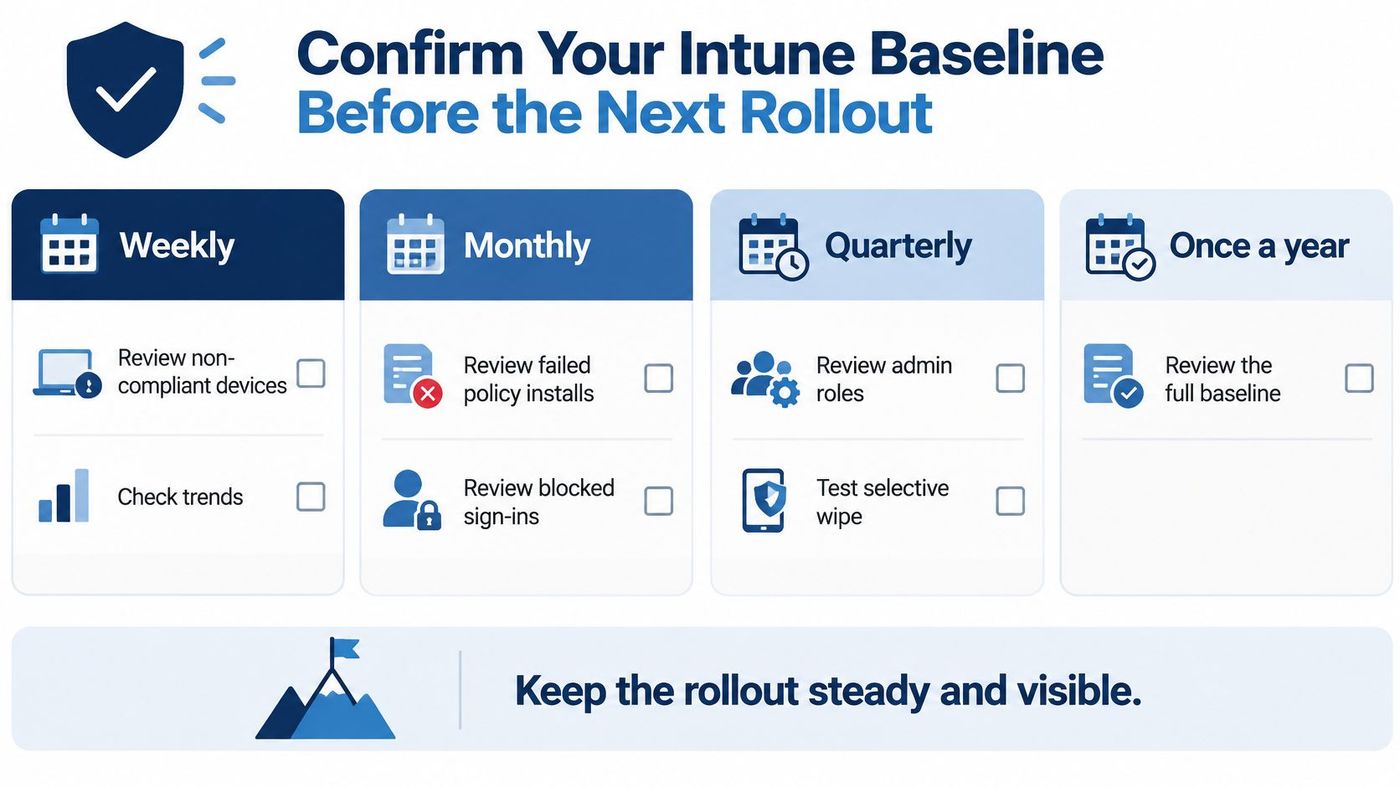
Review non-compliant devices weekly. Check failed policy installs and blocked sign-ins monthly. Review admin roles and test selective wipe quarterly, then reassess the full baseline once a year against new OS versions.
Before your next step, gather device types and counts, current licences, the Entra directory region, your policy documents and a list of BYOD roles. A baseline review assesses your existing stack and integrates tools that already work, such as Microsoft 365, which most of our clients run, while standardising security-critical components. Book that review with CloudOrbis before your next device rollout, not after the first lockout.
CloudOrbis helps Canadian small and mid-sized businesses design, deploy and operate Microsoft Intune with the right mix of full management, app protection and Conditional Access for each role. Book a baseline review before your next rollout and we'll confirm your licences, tenant region, policies and pilot plan so enrolment doesn't disrupt your team. Visit CloudOrbis Inc. to get started.
Book a 30-minute call with a senior engineer. No sales script, just straight answers about your environment.


