Microsoft 365 Help Desk: Setup, Support Tiers and SLAs
Build a Microsoft 365 help desk that handles identity incidents, support tiers and SLAs. A practical guide for Canadian SMBs and mid-sized teams.

Build a Microsoft 365 help desk that handles identity incidents, support tiers and SLAs. A practical guide for Canadian SMBs and mid-sized teams.

It's 8:47 a.m. and three people can't sign in, Outlook is stuck for the finance lead, and someone in operations has just approved a sign-in prompt they don't remember requesting. Your Microsoft 365 help desk has to decide, in minutes, which of those tickets is routine and which one could be an account takeover. If your team treats them in queue order, you'll fix the printer-adjacent problem first and contain the main risk last.
That's the operational shift this guide lays out. A well-run Microsoft 365 help desk restores service fast, but it measures itself on containment and evidence preservation when identity is involved, not only on closure speed.
A Microsoft 365 fault rarely stays with one user for long. When identity, email, file storage or Teams breaks, whole teams lose the tools they use to approve work, share files and talk to clients. Statistics Canada reported that 48% of Canadian businesses used cloud computing in 2023, up from 45% in 2021, making it the country's most widely used information and communications technology, according to the Statistics Canada release on digital technology use. Adoption reached 81% in information and cultural industries in 2023.
That spread explains the breadth of help desk work. You're supporting Entra ID sign-in, Outlook, Teams, SharePoint, OneDrive, permissions, device access and service availability, often in the same ticket. A password problem can be a sync fault, a Conditional Access policy, a non-compliant device, or the first sign of compromise.
Unclear ownership turns that complexity into delay. Tier 1 should resolve what's repeatable and reversible, Tier 2 should own tenant configuration and policy, and named business or security owners should approve changes that affect money, access or personal information.
| Request | Tier 1 (front line) | Tier 2 (engineering) | Sign-off or escalation |
|---|---|---|---|
| Password reset and MFA re-registration | Agent or self-service | Only after repeated lockouts | Security lead if the request is unexpected |
| Outlook, Teams or OneDrive sync fault | Runs service health check and user reset | Changes tenant configuration | Check Microsoft service health if widespread |
| New user onboarding and licence assignment | Follows onboarding checklist | Sets group and policy rules | Business owner approves licence |
| Device enrolment and compliance policy | Guides enrolment | Owns compliance policy | Security team |
| Shared mailbox and delegation changes | Simple adds and removals | Delegation and forwarding rules | Business owner for sensitive mailboxes |
| Suspected compromise or unusual sign-in | Triage and record only, no fix | Identity incident team | Privacy and security lead informed |
| Admin role or Conditional Access change | Not handled at Tier 1 | Applies after written approval | Client IT owner signs off |
| Data sharing or deletion request | Logs the request | Applies sharing or retention change | Privacy lead signs off |
Agree on this matrix before go-live and print it where triage staff work. I would not launch a help desk where Tier 1 can grant admin roles, change forwarding rules, or close an unusual sign-in as a password reset. Those aren't speed wins, they're control failures.
Practical rule: If a request changes who can access data, it needs a named approver outside Tier 1, even when the technical step takes thirty seconds.
Set-up fails when teams buy a ticketing tool first and invent process later. Work in phases, and don't move on until the current phase produces something a technician can use on a live ticket.
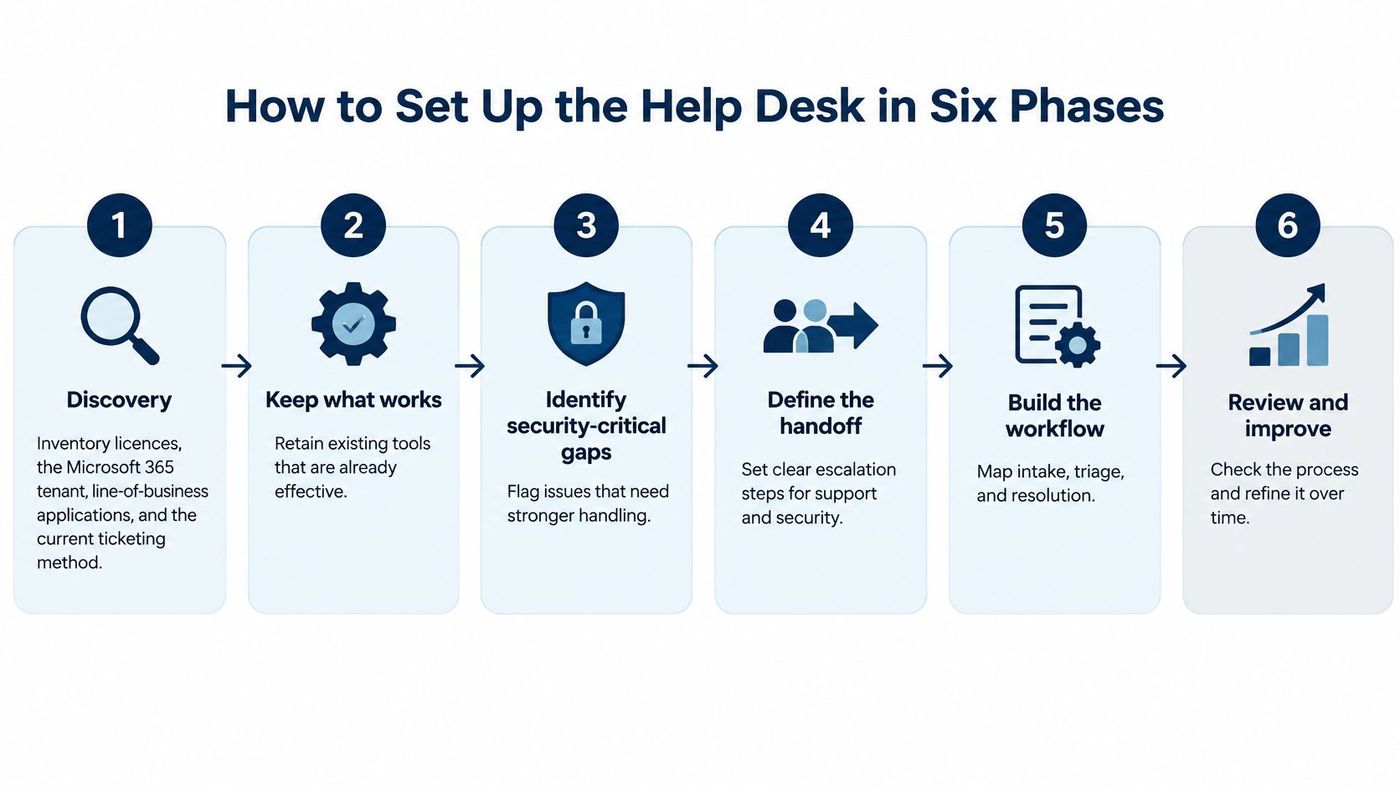
Finish with three checks. Every open ticket has an owner, the first week's tickets were routed correctly, and managers can see the dashboard. If any of those fails, you're not live, you're just receiving email in a new place.
A suspected account takeover should outrank a routine mailbox request, even if the mailbox ticket arrived first. The Government of Canada's Microsoft 365 security playbook guidance supports assessing Microsoft 365 issues by security risk. Apply that principle consistently: prioritize potential harm and urgency, then use arrival time to order tickets at the same priority.
The support workflow has four steps: a user submits a ticket through the IT Button or the client's ticketing system; triage routes it to internal IT or CloudOrbis according to the responsibility matrix; the assigned team resolves it; and the team adds post-incident documentation to the runbook. Clear ownership matters: for end-user tickets, CloudOrbis handles device support and Tier 1/2, while the client's team handles internal escalations.
For P1 and P2 tickets, capture the tenant, user, device, timestamp, affected service, business impact and correlation ID at intake. Then separate service restoration from evidence preservation. Save relevant logs before deleting messages, reimaging a device or resetting an account. Speed matters, but an early cleanup can erase evidence needed to understand an identity or session incident.
Automation can speed up routing and collect required fields, while a person assesses risk and decides what to do next. That balance supports scaling small business support without losing people. Measure median time to acknowledge, median time to contain, the share of privileged accounts protected by phishing-resistant MFA, the share of incidents with complete evidence, and repeat-incident rate. Ticket closure counts alone cannot show whether the team contained risk or preserved evidence.
Connect Microsoft 365 and Entra ID security alerts directly to your ticketing tool. A P1 alert should open a ticket automatically, page the on-call identity engineer and carry the tenant, user and correlation ID into the record without anyone retyping them. If a technician has to spot the alert in a separate portal, your response time depends on who happens to be looking.
Set SLA timers from the priority field so the acknowledge and contain clocks start at creation, not when someone reads the ticket. If you're reviewing your tooling, our guide to choosing a help desk ticketing system that supports structured intake covers what to test before you commit. Review integration failures monthly, because a broken connector can stop P1 alerts while the dashboard still looks calm.
Store each checklist in the runbook and configure the ticket so it can't close until every item is marked done. The leaver workflow matters most here. Blocking sign-in while leaving an OAuth consent or forwarding rule active gives you a closed ticket and an open door.
A user reports an unexpected sign-in, and the help desk resets the password. If the attacker still has an active session, an inbox rule, or an OAuth grant, that reset has not contained the incident. Treat identity and session alerts as security events, with response measured by containment and evidence preservation as well as ticket closure. The Government of Canada's Microsoft 365 security playbook recommends enforcing MFA through Conditional Access, disabling SMS-, email- and voice-based legacy MFA, and using phishing-resistant MFA where feasible.
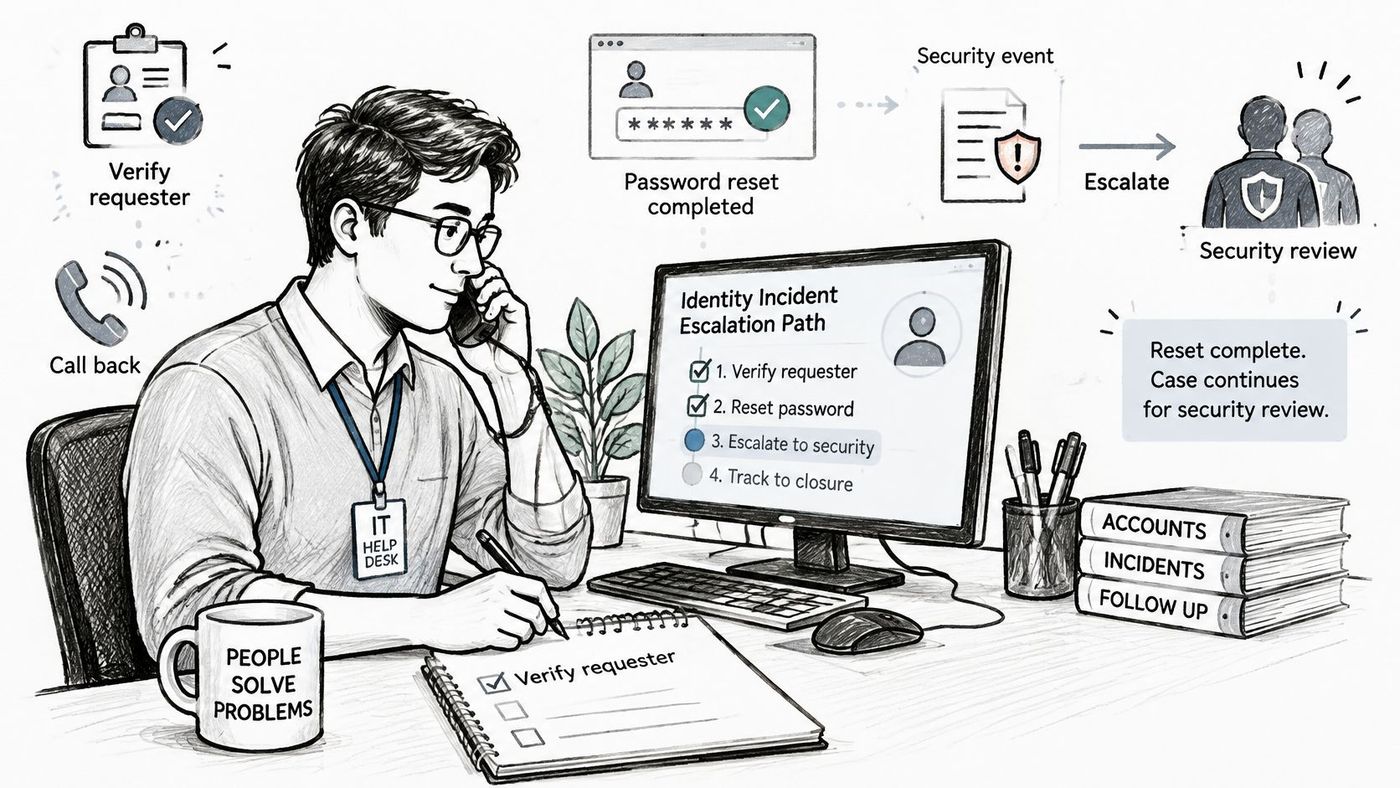
A password change alone is not containment. Revoke sessions, inspect mailbox rules and app consent, and document what was found before closing the incident. Repeated Authenticator prompts also need investigation. Do not approve them automatically; review the login context and treat unexpected prompts as a possible sign of account compromise.
A clear identity and access management policy defines who can investigate, revoke sessions, change authentication requirements, and approve recovery. See these Microsoft 365 identity and access management controls when setting escalation responsibilities.
CloudOrbis provides 24/7 coverage for security incidents and infrastructure issues. The useful measure is whether the response contains phishing, session theft, or failed recovery attempts and preserves evidence, including outside business hours. A ticket closed after a password reset can still leave an attacker with access.
Copilot doesn't create a new permission breach. It makes an existing one far easier to find, by letting any authorised user ask natural questions across everything they can already access. Canadian reporting based on Statistics Canada data notes that 19.2% of Canadian businesses used AI to produce goods or deliver services in the previous 12 months, up from 6.1% in 2024, with cybersecurity and privacy concerns identified as the most common barrier by 13.4% of businesses, as summarised in this overview of Microsoft 365 Copilot for Canadian organisations.
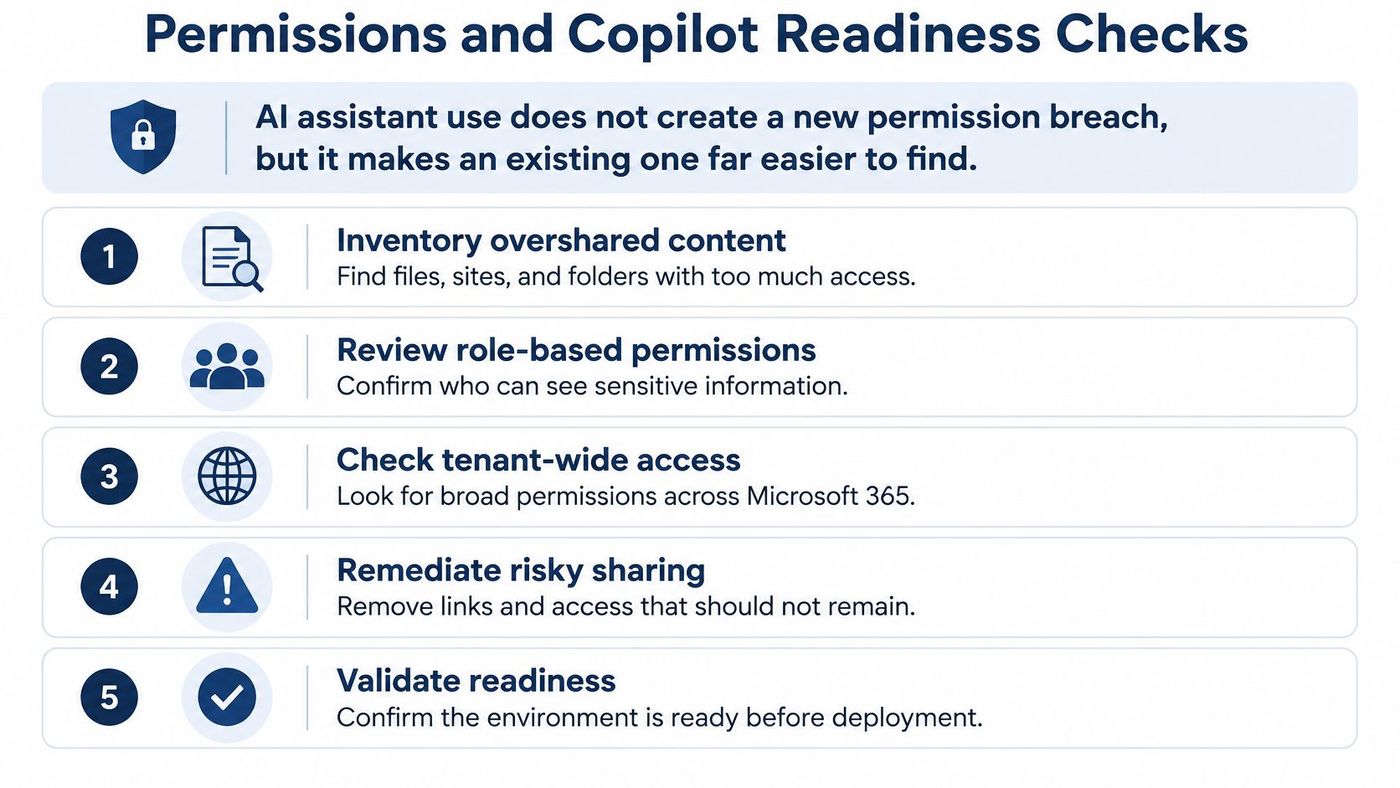
Then answer the policy questions in writing. Where is data stored and processed, what does your contract say about Canadian data residency, what are the acceptable use rules for generated content, who reviews AI output before it reaches a client, and how do you handle prompt injection through malicious documents. Our notes on Copilot privacy considerations for business use cover the contractual questions to ask.
If a sensitive file is found overshared, restrict it first, log the change, then review who accessed it. Investigation before restriction leaves the exposure running.
Treat readiness as an access governance and information lifecycle project, not a training task with a licence purchase attached. Training helps after permissions are right. Before that, it just teaches people to search a broken structure faster.
Use the targets below as a starting template, then tune them after the first 60 days of real tickets. Targets set without baseline data are either unachievable or so loose they hide problems. Our guide to SLA monitoring and reporting discipline explains how to keep the numbers honest once you're live.
| Priority | Typical example | Acknowledge within | Contain or restore within | Update cadence |
|---|---|---|---|---|
| P1 | Suspected account compromise, ransomware indicators, data exposure or privileged-account failure | 15 minutes | 2 hours to contain | Every 30 minutes |
| P2 | Department-wide service break, such as shared mailboxes or SharePoint access | 30 minutes | 4 business hours | Every 2 hours |
| P3 | Single user blocked with a workaround in place | 2 business hours | 1 business day | Daily |
| P4 | Licence, mailbox or setup request | 1 business day | 3 business days to complete | On completion |
There's a Canadian benchmark worth building into your P1 and P2 escalation path. Federal institutions must report a material privacy breach to the Treasury Board of Canada Secretariat and the Office of the Privacy Commissioner of Canada no later than seven days after determining that the breach is material, under the Treasury Board breach management guidance. Provincial and sector rules may apply to private organisations, but that seven day threshold tells you how fast a compromised mailbox or malicious forwarding rule must reach your privacy lead. It can't sit in a queue for a week first.
Reporting should match that seriousness. Leadership receives three tiers from us, a Monthly Operational Report covering tickets, recurring issues, asset inventory and response times, a Strategic Technical Review for quarterly budget forecasting and hardware lifecycle planning, and a Cybersecurity Compliance Report covering training completion, phishing results, patch compliance and insurance-ready documentation, all through a manager dashboard. If your monthly report only counts closed tickets, it can't support a cyber insurance renewal or a budget conversation.
Make the decision against criteria, not habit. The honest questions are uncomfortable, which is why teams skip them.
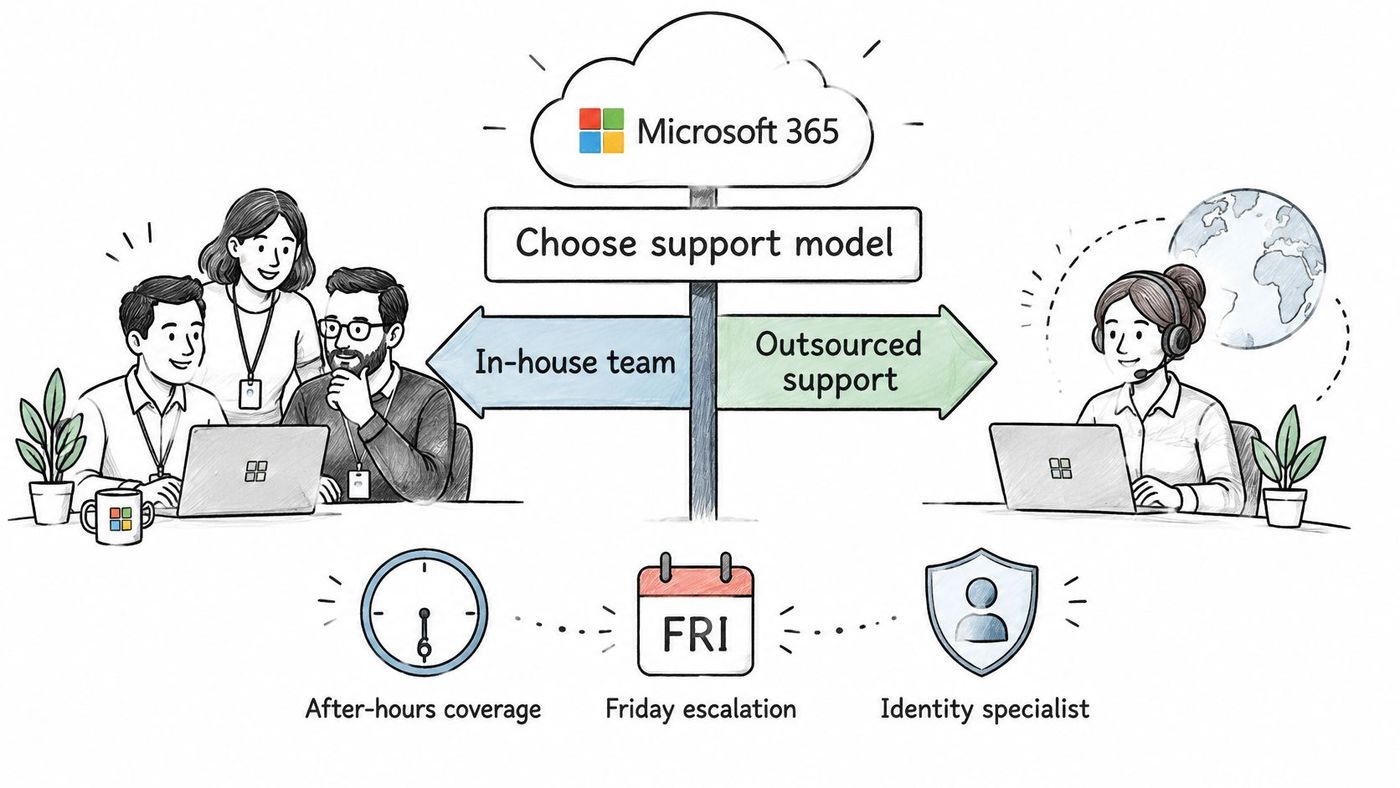
Most small and mid-sized teams land in the middle, and I'd recommend that split for the typical case. Keep business owner decisions in-house, such as licence approval and access to line-of-business systems, and outsource triage, monitoring and after-hours response where coverage is thin. If email volume itself is part of the problem, Sickle's guide to email management is a useful companion read on reducing mailbox load before it becomes ticket load. Our comparison of break-fix support versus managed services lays out the cost trade-offs in more detail.
Review the choice after the first quarter using SLA results and repeat-incident rate, not gut feel. This week, list your current Microsoft 365 licences, admin roles in use and open ticket volume for the last 90 days, then bring those figures to a Discovery Call, where we offer a personalised walkthrough of our support platform, policies and reporting. You can also reach us at 1-888-755-3022.
If your Microsoft 365 help desk is closing tickets quickly but can't show containment times, evidence records or who approved the last admin role change, it's time to rebuild the model rather than add headcount. CloudOrbis Inc. runs a 24/7 Canadian-based help desk with structured triage, identity incident escalation and reporting your leadership and insurers can use. Visit CloudOrbis Inc. to book a Discovery Call and compare your current support against the tier map and SLA targets in this guide.
Book a 30-minute call with a senior engineer. No sales script, just straight answers about your environment.


