Computers for Schools in BC: 2026 Funding, Deployment & Management Guide
Your 2026 guide to funding, deploying, and managing computers for schools bc with practical tips to boost student learning.

Your 2026 guide to funding, deploying, and managing computers for schools bc with practical tips to boost student learning.
Getting the right computers for schools in BC has evolved from a luxury to a fundamental piece of the educational puzzle. A winning strategy isn’t just about buying new machines; it's about executing a concrete plan that covers everything from funding and deployment to long-term management, all while supporting today's learning objectives. This guide serves as your roadmap for making technology a powerful tool for learning, not just another administrative headache.
As British Columbia's classrooms evolve from teaching basic digital skills to embedding computer science directly into the curriculum, the pressure on school administrators and IT leaders is mounting. Simply reacting to broken hardware or outdated software is no longer a viable option. You need a forward-thinking plan to give every student the tools they need for a digital-first future.
This means looking beyond the next purchase order. A truly sustainable framework must cover the entire lifecycle of your school's technology. For districts across BC, that means building a unified plan that maps out everything from securing funding to responsibly retiring old devices.
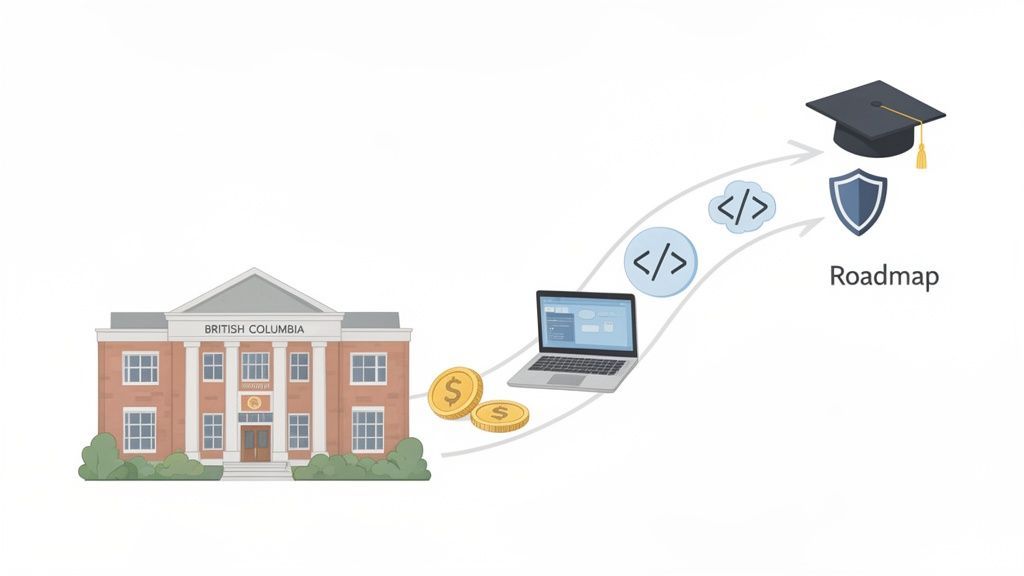
The old way of doing things, buying a batch of computers whenever a bit of budget frees up, inevitably leads to chaos. You end up with a mix of different devices, incompatible software, and glaring security holes. A proactive strategy, on the other hand, ties every technology decision directly to your educational mission. It’s the difference between building a house with a solid blueprint versus just buying materials as you go and hoping they all fit.
A proactive approach includes:
A strong technology strategy isn’t about chasing the newest gadgets. It's about creating a reliable, secure, and equitable learning environment where technology empowers teachers and students to succeed. Getting this foundation right is essential for any long-term success.
By making this shift in mindset, you can transform how you acquire and manage computers for schools in BC. Proactive IT management, whether handled in-house or with a partner, makes the entire process run more smoothly. To see how specialized IT services can support your institution, you can explore our solutions for the education sector. This change lets you focus on what really matters, student outcomes, while ensuring your technology investment is secure, effective, and built to last.
Let's be honest: finding the money for new school computers in BC can feel like a full-time job. Between navigating provincial budgets, grant deadlines, and district procurement rules, the entire process is often a complex headache.
The key to getting what you need isn't just about asking for more money. It’s about building a compelling case that connects your technology request directly to British Columbia's learning priorities, like the growing focus on computer science and digital literacy. This shifts the conversation from a simple expense to a critical investment in your students' futures.
The main funding for public schools comes from the Ministry of Education and Child Care, which then distributes funds to the school districts. The challenge? That funding has to cover everything from salaries to keeping the lights on, leaving technology budgets notoriously tight. This means you need to get creative and look beyond your standard operational funds.
Many districts find success by tapping into targeted provincial grants and other initiatives. These can be a game-changer for getting technology into classrooms.
Despite a 250% inflation-adjusted increase in K-12 public education spending between 1970 and 2020, technology gaps remain a real problem. The rapid switch to remote learning highlighted long-standing issues, unreliable school internet, insufficient devices, and a heavy reliance on 'bring your own device' (BYOD) policies. These policies often place an unfair burden on families, especially in more rural areas. You can explore the history of these funding challenges in BC through this detailed analysis of public education spending trends.
A great budget proposal or grant application tells a compelling story. It paints a vivid picture of the need, your proposed solution, and the direct impact it will have on student learning. Instead of just listing hardware costs, frame your request around clear educational goals.
A winning proposal doesn't just say, "We need 30 new laptops." It says, "We need 30 new laptops to launch a Grade 8 coding club. This will give our students foundational skills for high-demand careers and help our school meet BC's new computer science curriculum goals."
As you build your financial plan, distinguish between district-wide procurement and individual school initiatives. District-level purchasing can yield better pricing through bulk discounts and helps standardize hardware, which simplifies management.
However, school-specific initiatives provide the flexibility to acquire tailored solutions for your students' unique needs, like specialized computers for a new media arts program. A successful approach balances both strategies, using the benefits of each to stretch your budget further and deliver the best tools for learning.
Picking the right computers for a K-12 school isn't like buying standard office equipment. It's about matching the tool to the curriculum, the student, and the specific learning goal. A one-size-fits-all approach almost always leads to wasted funds, frustrated teachers, and technology that obstructs learning instead of enhancing it.
The real goal is to build a diverse fleet of devices that works for every scenario in your school, from a first-grader’s interactive math game to a senior’s complex coding project. This starts with a practical assessment of who will use the computer and what they need to accomplish. By aligning your hardware choices with these real-world needs, you can make a strategic investment that pays dividends in the classroom without blowing your budget.
The modern classroom in British Columbia is incredibly diverse. The technology that ignites a young learner’s curiosity is completely different from what a high school student in an ADST program needs to succeed. Making the right call means understanding the strengths and limitations of each device.
The core principle is simple: the curriculum should always drive the technology choice, not the other way around. Investing in high-performance laptops for an entire elementary school is just as inefficient as asking a video editing class to work on basic tablets.
This targeted approach ensures you’re putting the right tools into the right hands. Of course, as technology and curriculum demands evolve, it's also important to know when your hardware is past its prime. Learning the 3 signs you need to upgrade your hardware can help you build a smarter, more predictable refresh cycle.
Your technology plan can’t stop with the students. Teachers and administrative staff need reliable, capable devices to manage classrooms, create lesson plans, and keep the school running smoothly. A teacher's laptop must be a multitasking powerhouse, simultaneously running a smartboard, communicating with parents, and accessing student information systems.
Likewise, your admin team handles sensitive student data, payroll, and district-wide communications. Giving them underpowered machines creates frustrating bottlenecks and even security risks. As you plan your budget, explore all your procurement options, including sourcing affordable laptops for students and staff that still meet your performance standards.
To make these critical hardware decisions clearer, a side-by-side comparison can be a huge help. The table below outlines our recommended specifications for different roles within the BC school system, serving as a practical guide for your procurement team.
| Use Case | Device Type | Recommended OS | Processor | RAM | Storage | Key Considerations |
|---|---|---|---|---|---|---|
| Early Learners (K-3) | Tablet | iPadOS / Android | A-series Bionic or equivalent | 4 GB+ | 64 GB+ | Durability, case availability, access to educational apps |
| General Classroom (4-10) | Chromebook | ChromeOS | Intel Celeron / Core i3 or AMD equivalent | 8 GB | 64 GB eMMC | Long battery life, rugged build, ease of management |
| Specialized (ADST, Labs) | Laptop | Windows / macOS | Intel Core i5/i7 or Apple M-series | 16 GB+ | 512 GB+ SSD | High performance, dedicated graphics (if needed), software compatibility |
| Teachers / Educators | Laptop | Windows / macOS | Intel Core i5 or Apple M-series | 16 GB | 256 GB+ SSD | Portability, strong battery life, ability to multitask smoothly |
| Admin Staff | Desktop/Laptop | Windows | Intel Core i5/i7 | 16 GB | 512 GB+ SSD | Security features, reliability, performance for office applications |
This framework helps ensure every dollar spent on technology directly supports a specific educational or operational need, creating a more effective and efficient learning environment for everyone.
Getting new computers into your schools is a great start, but it’s only the beginning. The real work, and where your tech strategy is truly tested, is in the deployment and ongoing management. Without a rock-solid plan, even the best hardware can become a logistical nightmare, creating more work for your staff and delivering less value to students.
Think of it this way: you wouldn't manage a fleet of school buses the same way you manage a single car. You need a central system for tracking, maintenance, and operations to keep everything running smoothly. The same logic applies to your computers. Managing them one by one is inefficient and unscalable.
This is where matching the right device to the right student comes into play, a core part of any successful deployment.
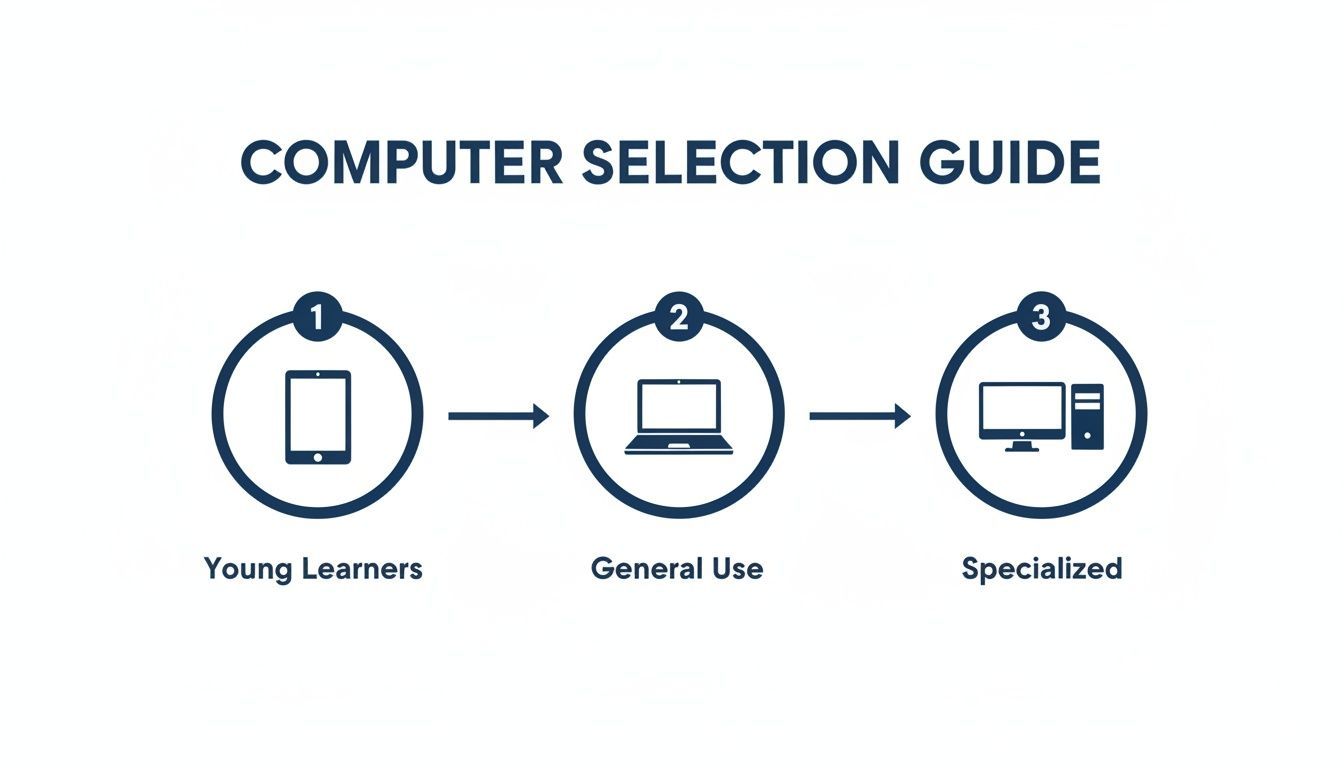
As the guide shows, the technology needs to fit the educational goal. That’s how you maximize its impact.
The days of unboxing hundreds of devices and setting them up manually are long gone. Modern deployment is all about automation and efficiency, allowing your IT team to configure and roll out new computers at scale with minimal hands-on time.
One of the most powerful methods is zero-touch provisioning. With this approach, devices are pre-configured to automatically enroll in your school's management system the moment they connect to the internet. This means a teacher or student can open a new laptop, log in, and instantly have all their apps, settings, and security policies ready to go.
Zero-touch provisioning transforms device deployment from a weeks-long manual project into a streamlined, automated process. It ensures consistency across all devices, reduces human error, and gets technology into the hands of students and teachers faster than ever before.
This automation is powered by a Mobile Device Management (MDM) platform. An MDM is your command centre for every computer in the fleet, giving you complete control over software updates, security settings, app distribution, and device tracking. It’s an essential tool for managing computers for schools in BC today. To see how these platforms work behind the scenes, you can learn more about remote monitoring and management services.
Great management doesn't stop after deployment. A smart technology plan must cover the entire lifecycle of every device, from purchase to responsible retirement. This starts with creating a predictable refresh cycle.
For student devices, a typical refresh cycle is three to five years. Planning for this helps you budget more accurately and prevents you from getting stuck with aging hardware that can’t run modern educational software.
The need for these digital tools isn’t new. In fact, BC's use of distributed learning, which relies on computers, dates back to virtual schools in 1993. Between 2001 and 2008, enrollment in these programs exploded by over 2000% as policies shifted to favour more flexible, tech-based education.
When building a technology strategy, planning for the full lifecycle, including the eventual retirement and replacement of devices, is what makes your computer fleet sustainable. For more ideas on how to build this out, there are great resources on managing the lifecycle of electronics for schools. A solid plan ensures your school’s technology program is predictable, efficient, and ready for the future.
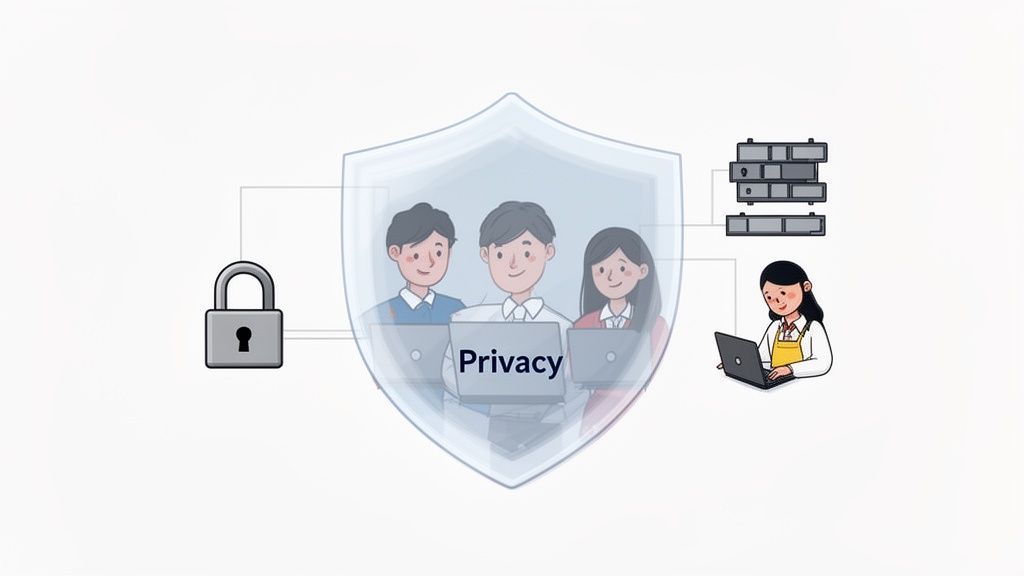
Rolling out hundreds of new computers for schools in BC is a massive step forward for student learning. But with this opportunity comes a serious responsibility. Every new device is a potential doorway into your school’s network, and protecting student and staff data is more than just good practice, it’s a legal obligation.
Think of it as building a digital fortress. A strong security plan isn’t a single tool; it’s layers of defence working together. The goal is to create a safe online space where students can learn and explore without unnecessary risks.
For any school in British Columbia, the Freedom of Information and Protection of Privacy Act (FIPPA) is the rulebook for data security. This legislation sets out strict requirements for how you collect, use, and store personal information. Simply put, you are legally required to keep student and staff data safe and confidential.
A key part of FIPPA compliance is data residency. This means ensuring all student data stays within Canadian borders unless you have explicit parental consent. This directly impacts your choice of software and cloud services, from learning management systems to online storage. You must verify that any platform you adopt meets these critical requirements.
A data breach doesn't just erode trust; it can lead to serious legal and financial consequences. Understanding your school's duties under FIPPA is the first step toward building a cybersecurity plan that actually works.
Trying to add security and privacy measures after the fact is always more difficult and less effective. As you evaluate new computers for schools in BC, your security checklist must be just as important as your hardware specifications.
A solid security strategy is like securing a school building. You need strong locks on every classroom door (endpoint protection), a solid fence around the property (firewall), and a system to monitor who comes and goes (content filtering).
Here are the essential layers every school needs:
These tools are the foundation of your defence, but they're only one piece of the puzzle.
The best security technology in the world can be defeated by one person clicking a malicious link in a phishing email. This is why staff and student education is so critical. They are your "human firewall."
This became especially clear after 2016, when British Columbia made a major push to integrate coding into the K-12 curriculum, investing $6 million CAD in teacher training. As you can discover more about how BC implemented this CS program, this created a generation of more tech-savvy students, but it also highlighted the urgent need for digital safety skills.
Regular training on how to spot phishing scams, use strong passwords, and practice safe browsing habits can drastically reduce your school's risk exposure. To learn more about building a complete defensive strategy, take a look at our guide on comprehensive cyber security services.
Let’s be realistic. Juggling a growing fleet of devices, keeping the network stable, and defending against cyberattacks can quickly overwhelm even the most dedicated school IT teams. For many, IT support becomes a relentless cycle of reactive firefighting, fixing what’s broken today instead of building a stronger foundation for tomorrow. This is where bringing on a managed IT services provider (MSP) can be a complete game-changer.
An MSP helps you shift from a reactive to a proactive approach. Instead of just calling for help when a server goes down or a classroom’s Wi-Fi fails, a partner actively monitors your systems 24/7 to catch problems before they disrupt learning. It's like having a dedicated crew of engineers watching over your digital infrastructure around the clock, ensuring everything just works.
A typical school's internal IT department, often just one or two people, is stretched incredibly thin. Their day is a whirlwind of password resets, printer jams, and urgent software glitches. This constant demand leaves zero time for the strategic work that actually moves your school forward, like long-term budgeting, cybersecurity planning, or researching new educational technologies.
A managed IT partner completely flips this dynamic. By taking over the day-to-day monitoring, maintenance, and support, an MSP frees up your internal staff to focus on high-value tasks that directly support your educational goals.
A managed IT partner acts as a true extension of your team, giving you the expertise and resources of an enterprise-grade IT department. This lets your educators and administrators focus on what they do best, educating students, instead of worrying about technology.
This partnership structure means you can scale your IT capabilities instantly without the high cost and complexity of hiring a full in-house team. This shift turns your IT from a necessary cost centre into a strategic asset that drives progress.
Working with an MSP offers a host of advantages that are especially critical in an educational setting. Beyond just fixing problems, a true partner helps you build a more resilient, secure, and efficient technology environment for your school.
By handling the complexities of modern IT, a managed partner helps you build a strong foundation for digital learning. For a deeper look into what this entails, you can learn more about how a managed IT service can optimize your operations. Ultimately, this collaboration allows you to provide a more reliable and secure learning environment for everyone.
Navigating the world of educational technology always brings up questions. To help you move forward with confidence, we’ve put together answers to some of the most common queries we hear from school administrators and IT leaders across BC.
As a general rule, plan for a three-to-five-year refresh cycle for student devices like Chromebooks and laptops. This timeframe is the sweet spot for ensuring your hardware can still run current educational software and withstand daily classroom use.
Pushing devices past the five-year mark often leads to a sharp increase in support tickets, sluggish performance, and compatibility issues that get in the way of learning. Sticking to a predictable cycle turns hardware replacement from a recurring crisis into a planned, manageable process that you can budget for accurately.
A BYOD policy allows students to use their personal laptops, tablets, or other devices at school for their work. While it may seem like a good way to save on costs, a BYOD-first approach often creates challenges with equity and security. Not every family can afford a suitable device, which can quickly create a digital divide in the classroom.
On top of that, managing a huge variety of personal devices is a heavy lift for your IT team. It becomes incredibly difficult to enforce security policies, manage software, and ensure every student has a consistent and fair learning experience. A school-provided device model almost always gives you better control, security, and equity.
Yes, absolutely. Even though Chromebooks are known for being simple and secure, a Mobile Device Management (MDM) platform, like the one included in Google Workspace for Education, is non-negotiable. Think of an MDM as the central command centre for your entire fleet.
It’s what allows your team to:
Without an MDM, trying to manage even a small fleet of Chromebooks becomes chaotic and impractical. It’s a foundational tool for any successful school technology program.
Navigating the complexities of educational IT, from deployment to cybersecurity, requires a strategic partner you can trust. CloudOrbis delivers the proactive managed IT services that BC schools need to build a secure, reliable, and future-ready learning environment. Let's build your technology roadmap together.
Book a 30-minute call with a senior engineer. No sales script, just straight answers about your environment.


